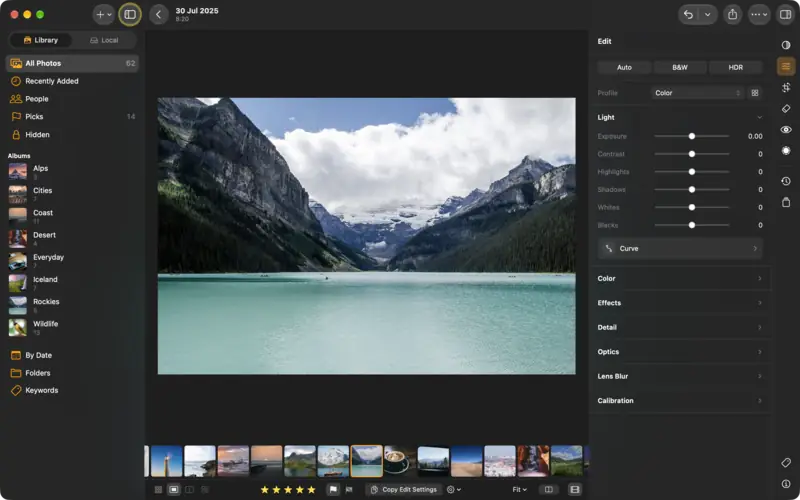
Step 1
Open Crop
Step 1: Open Crop 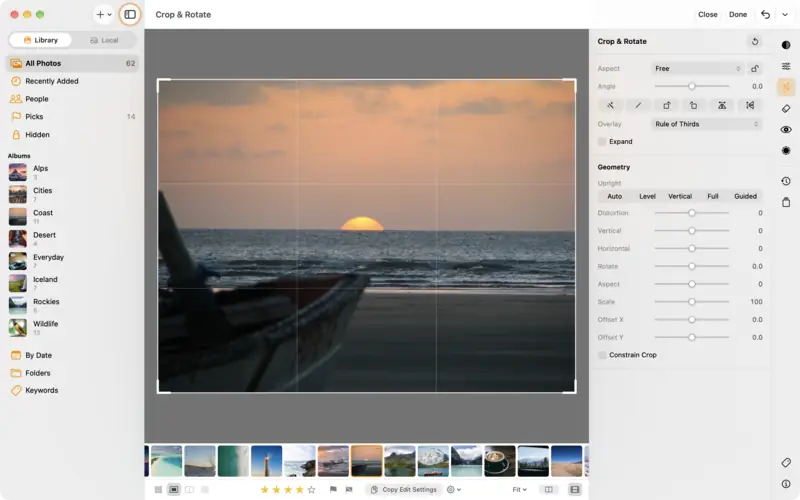
Step 1: Open Crop Step 2
Level the horizon
Settings
- Crop
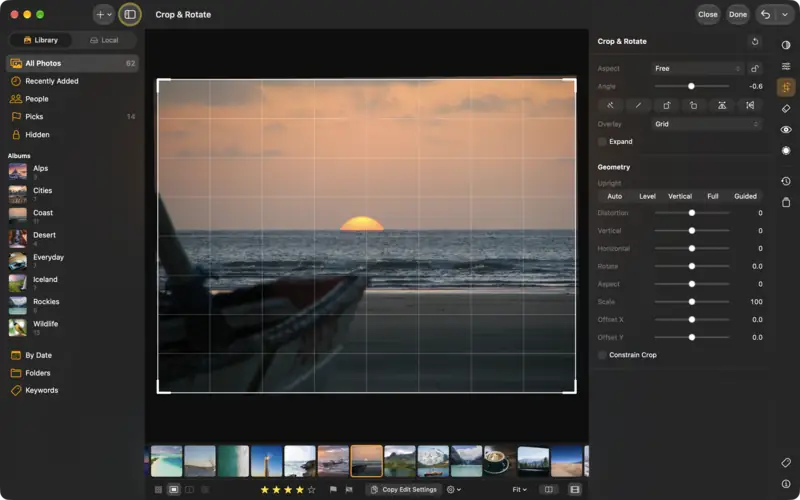
- Straighten
- Auto
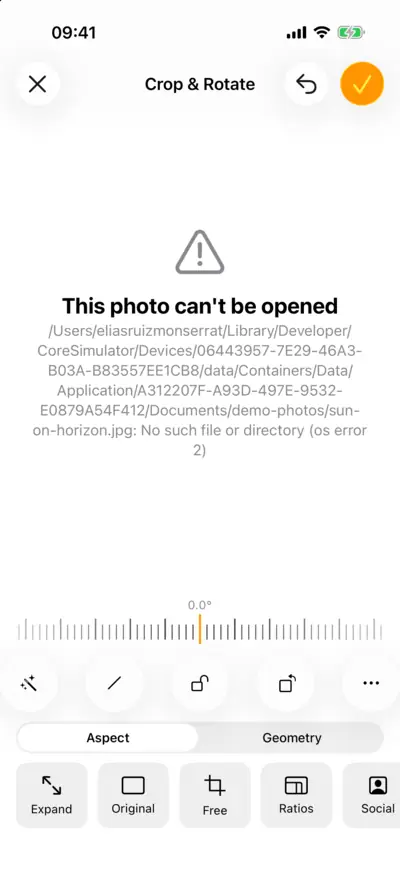
Step 2: Level the horizon 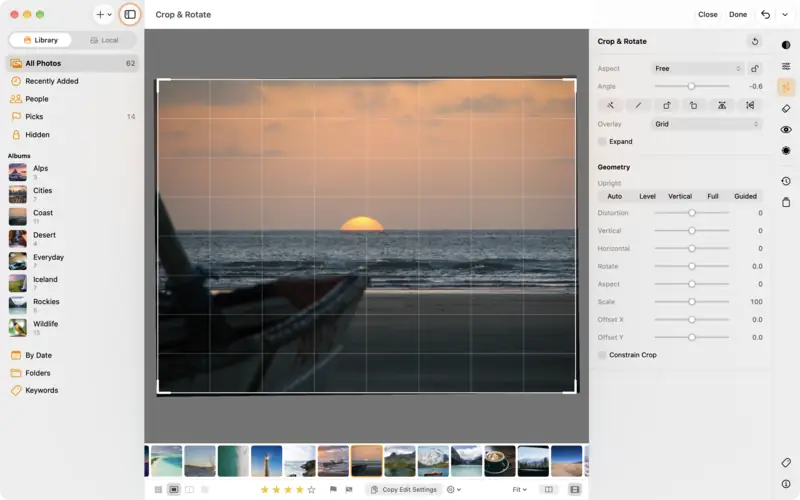
Step 2: Level the horizon Step 3
Choose a shape
Settings
- Crop
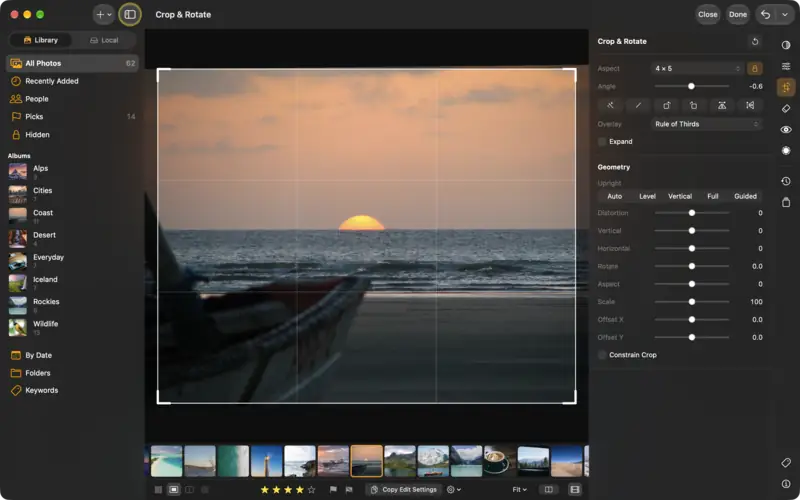
- Aspect
- 4 × 5
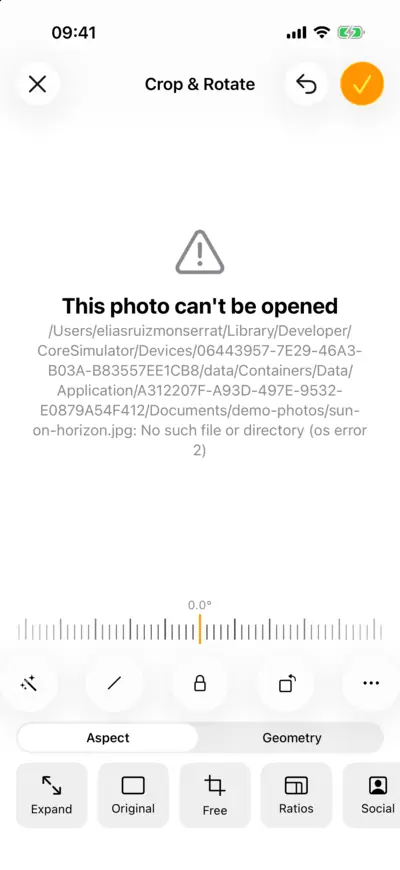
Step 3: Choose a shape 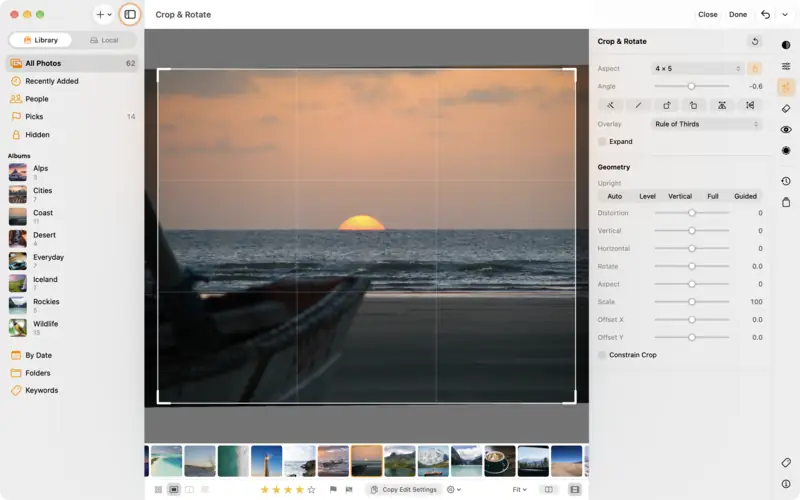
Step 3: Choose a shape Step 4
Rotate, flip, and finish
Step 4: Rotate, flip, and finish 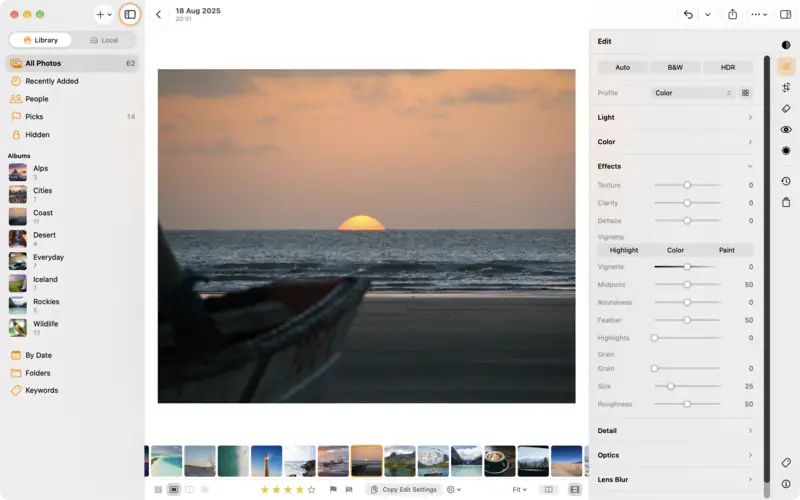
Step 4: Rotate, flip, and finish
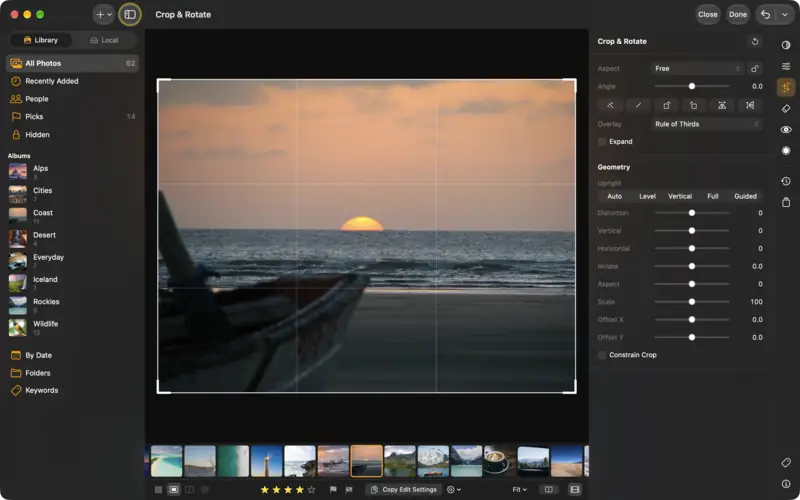
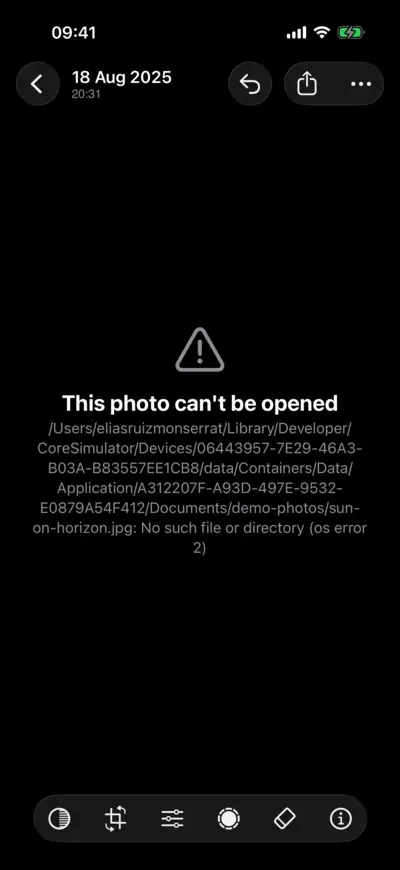
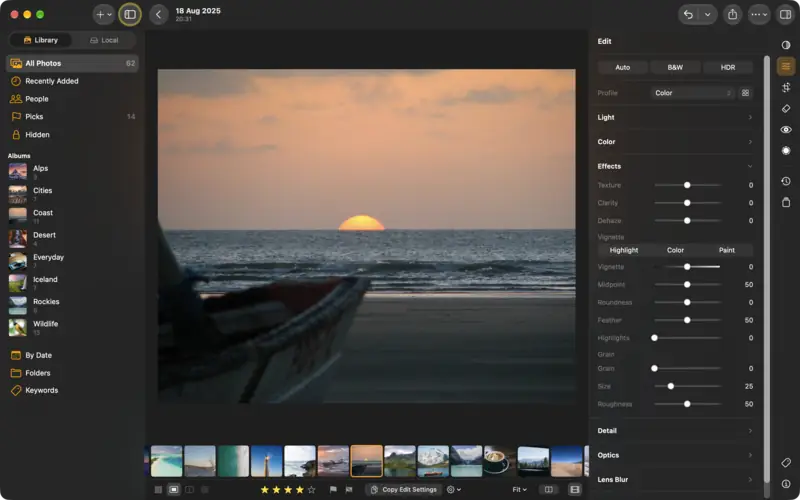
Questions
4 × 5 for photos in the feed (it takes up the most room), 9 × 16 for stories and reels, and 1 × 1 for a square grid. LightBites has them all under Aspect, in Social.
No. The crop is stored as an edit. Open Crop again and the whole photo is still there.
Read next
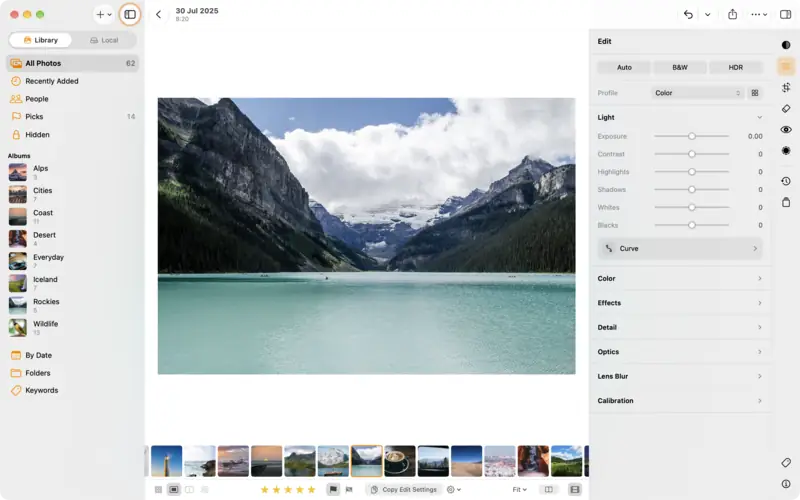
Edit a photo: the basics
The editor in five minutes: the edit groups, Auto, the Light and Color sliders, comparing before and after, undo, and dials or sliders.
Beginner5 min
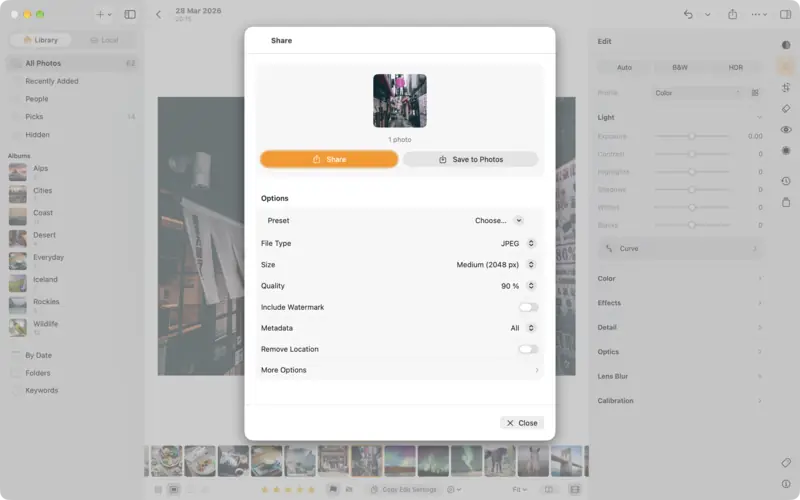
Export and share your photos
Send an edit to Messages, AirDrop or Photos, choose JPEG, PNG, TIFF, AVIF or the original, pick the right size, and keep your location private.
Beginner3 min