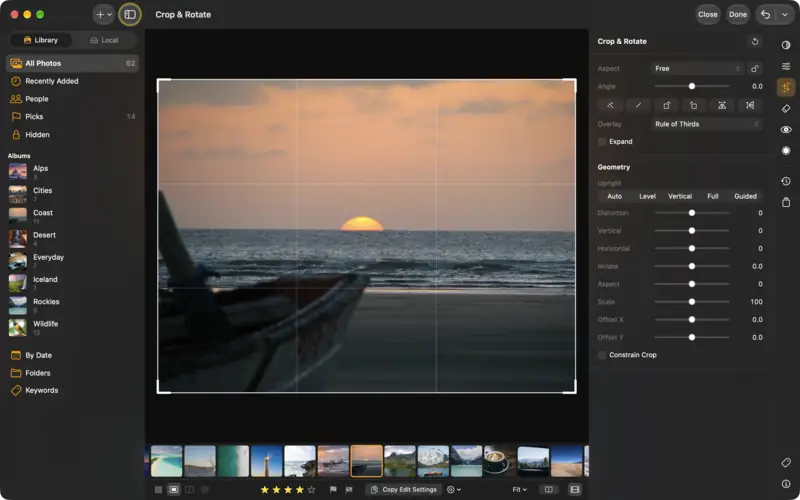
Step 1
Open the editor
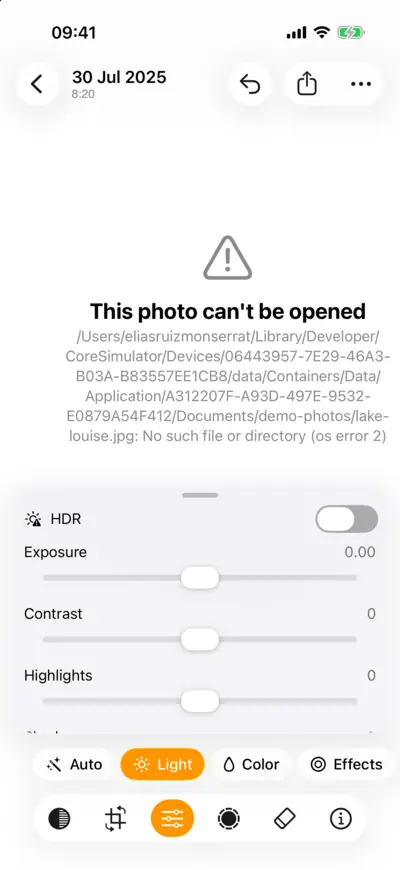
Step 1: Open the editor 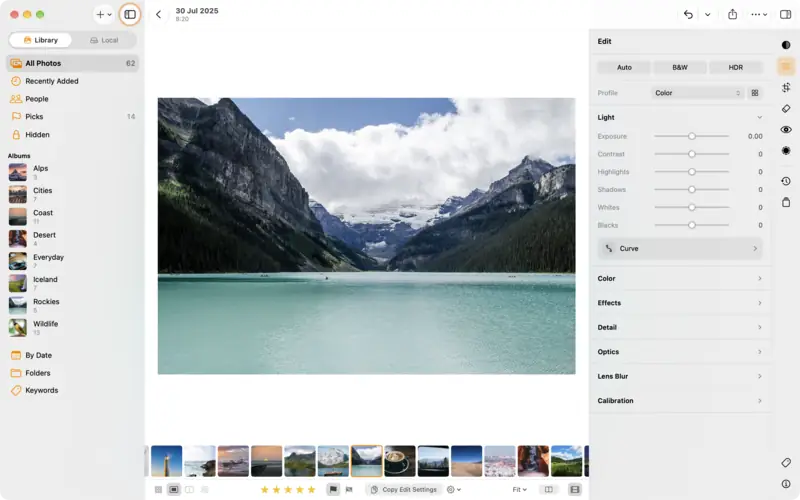
Step 1: Open the editor Step 2
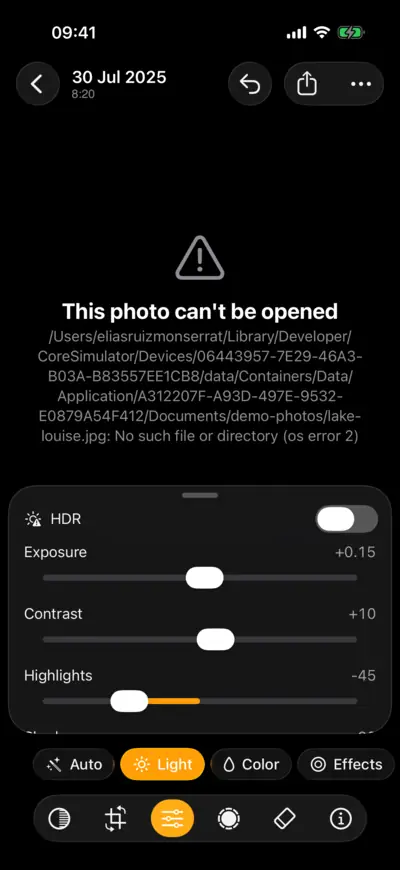
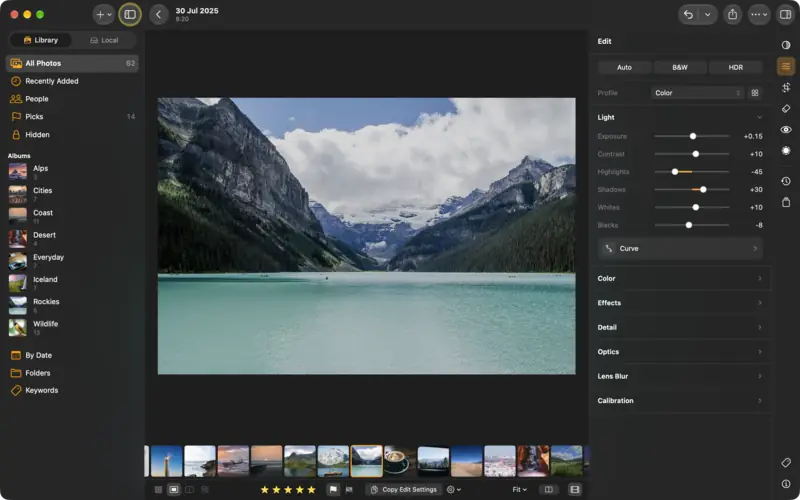
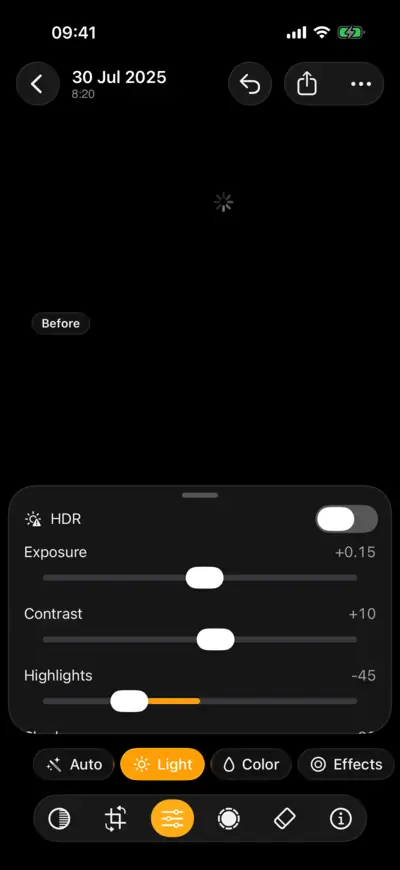
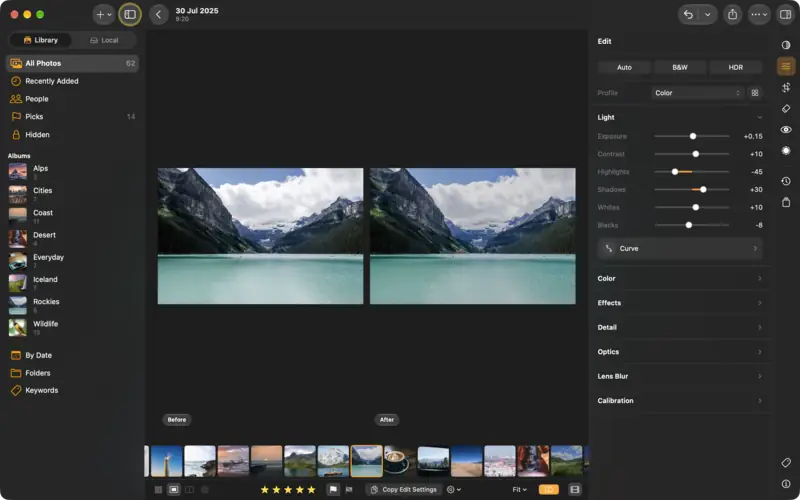
Set the light
Settings
- Light
- Exposure
- +0.15
- Highlights
- −45
- Shadows
- +30
- Whites
- +10
- Blacks
- −8
- Contrast
- +10
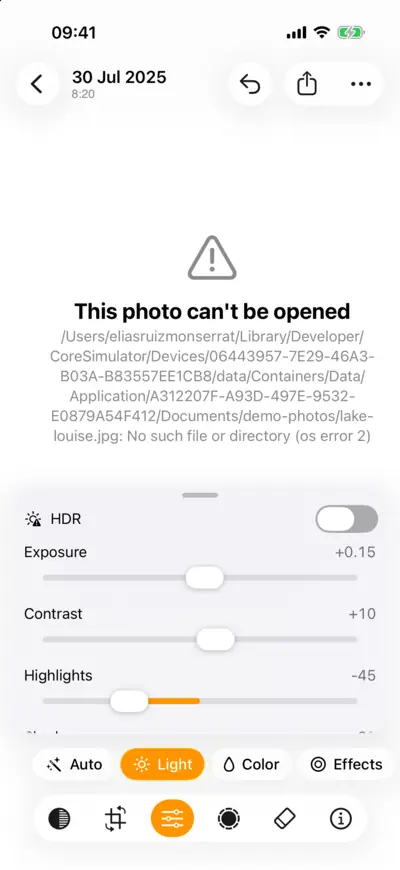
Step 2: Set the light 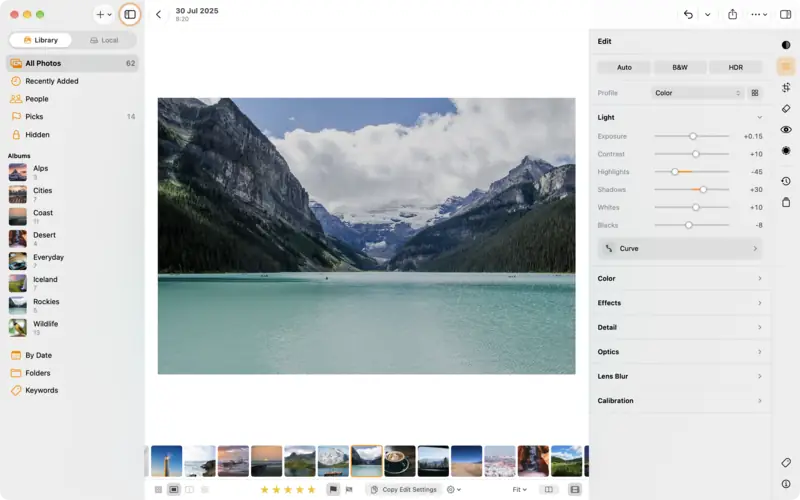
Step 2: Set the light Step 3
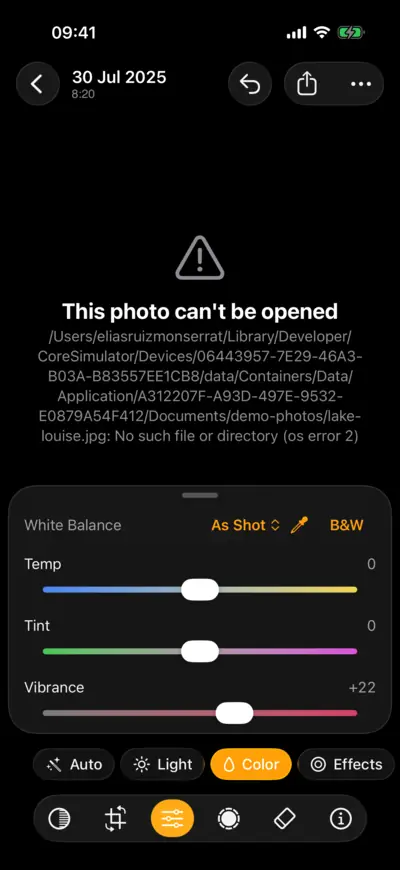
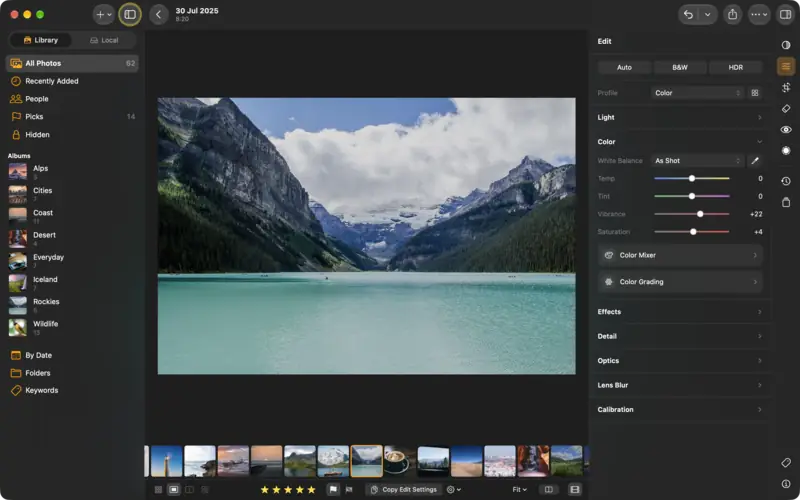
Fix the colour
Settings
- Color
- Vibrance
- +22
- Saturation
- +4
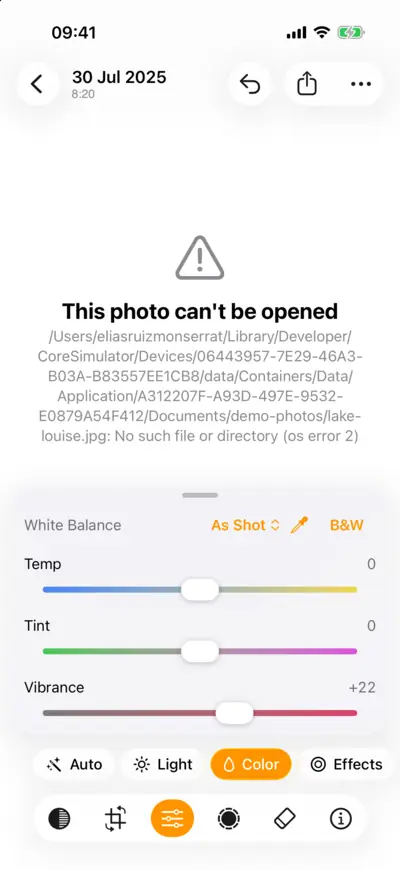
Step 3: Fix the colour 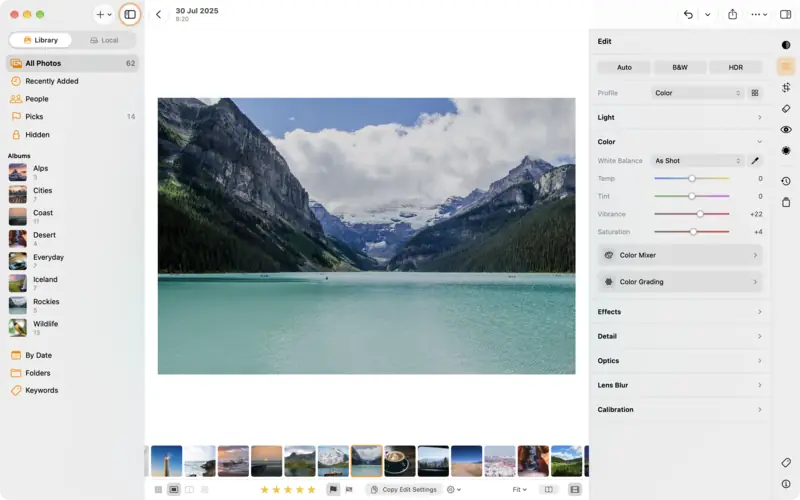
Step 3: Fix the colour Step 4
Compare, undo, start again
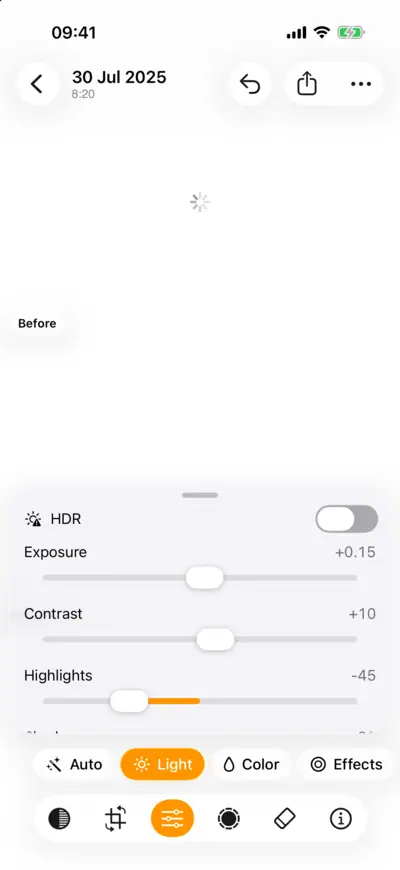
Step 4: Compare, undo, start again 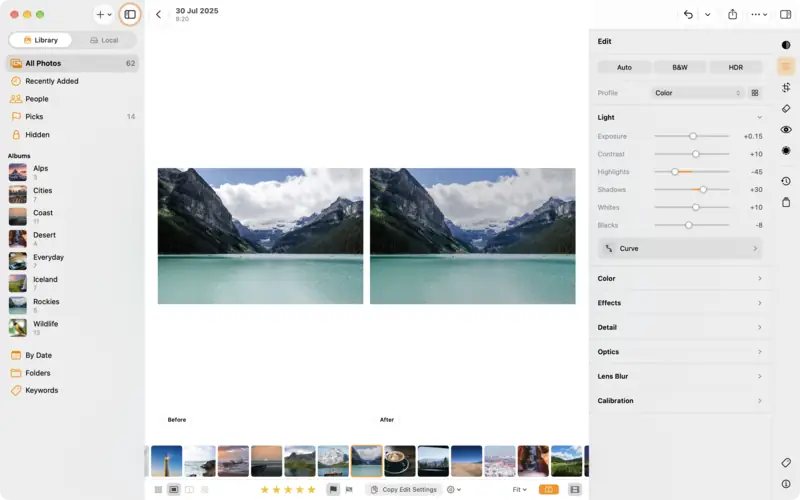
Step 4: Compare, undo, start again Step 5
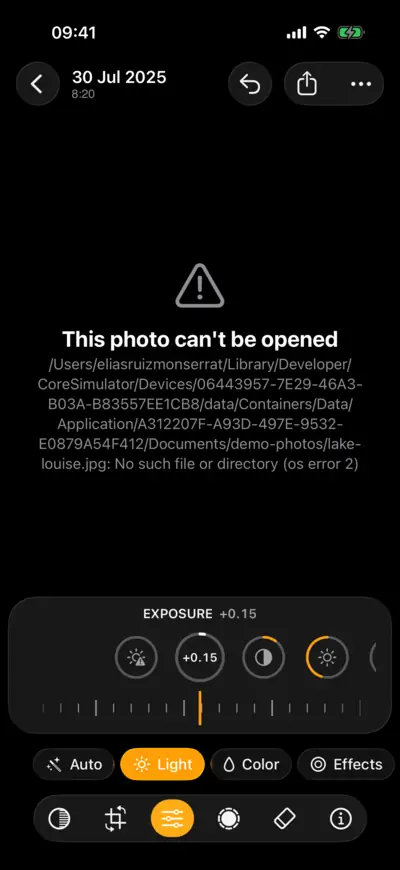
Dials or sliders
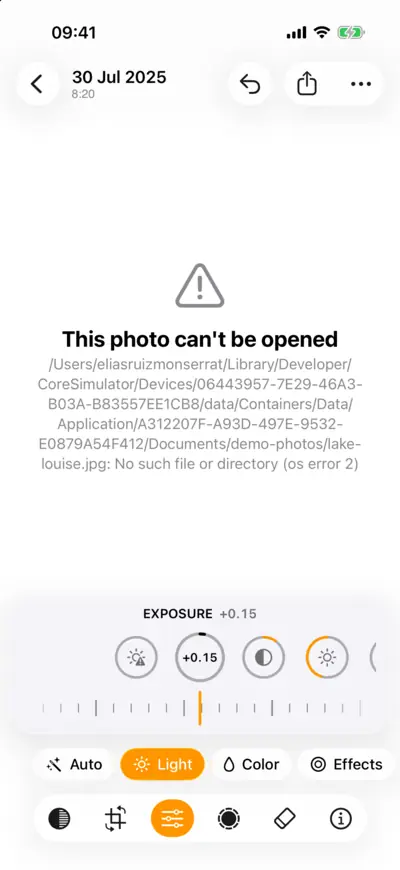
Step 5: Dials or sliders
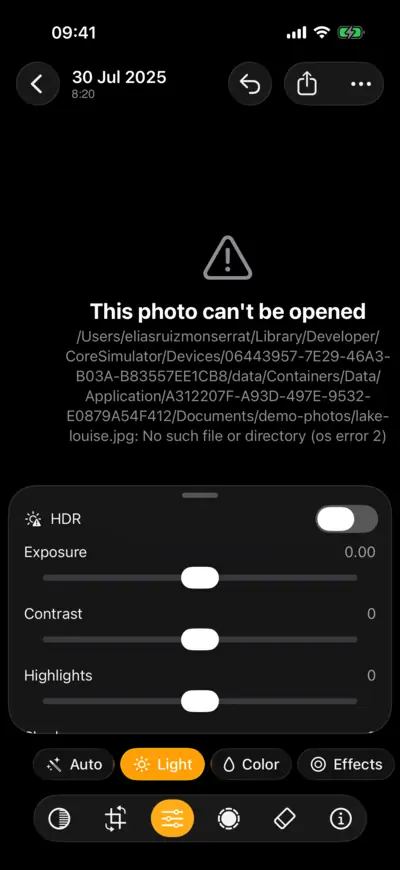
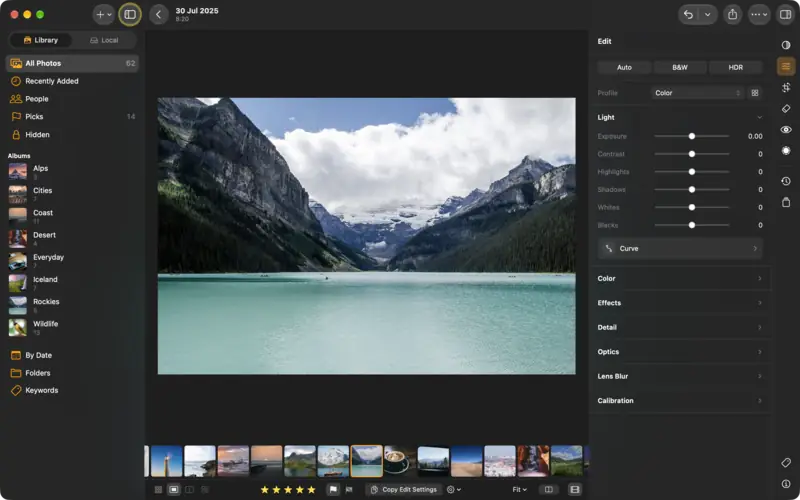
Questions
Yes, at any time. Edits are saved as instructions, not baked into the photo: reset a slider, step back through History, or reset the whole photo, even weeks later.
It works the way Lightroom does, with the same kind of sliders, masks, presets and raw processing, but it runs entirely on your device, with no account and no subscription.
Read next
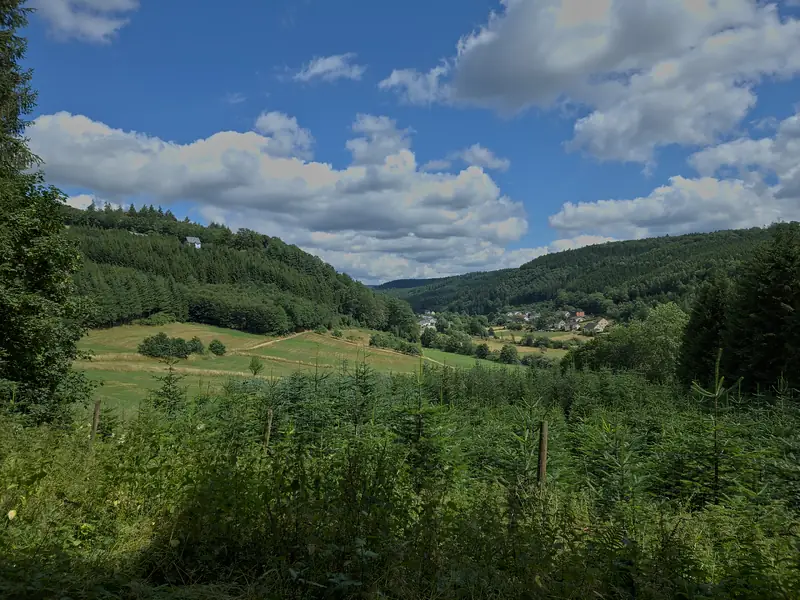
How to edit a raw photo, in the order the pros do
A raw file is where a great photo starts. The order to work in, from profile and white balance to tone, colour and sharpening, with a raw file to practise on.
Beginner8 min Raw + settings
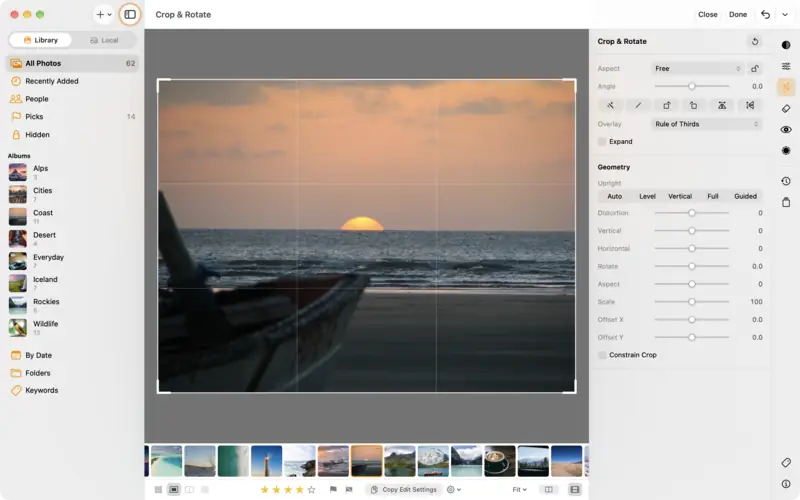
Crop and straighten a photo
Level a crooked horizon, crop to 4:5, 9:16 or square for social media, rotate and flip, and change it all again later.
Beginner3 min