Step 1
Choose the colour of the night
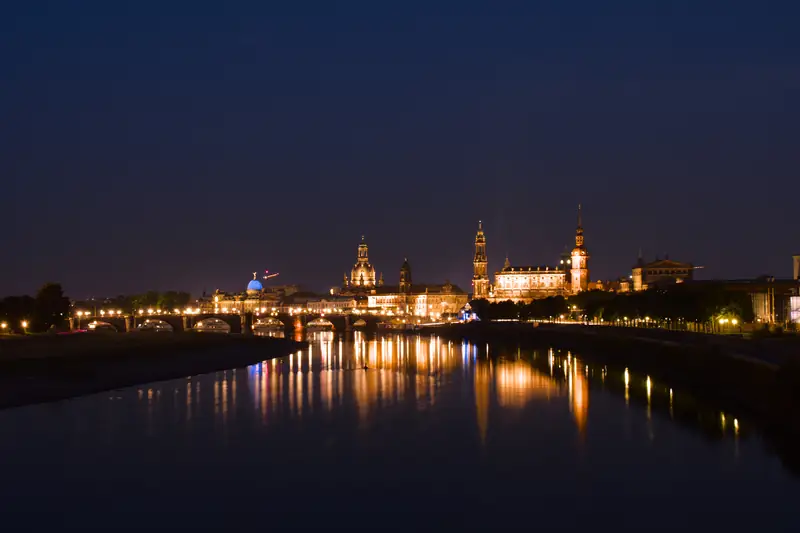
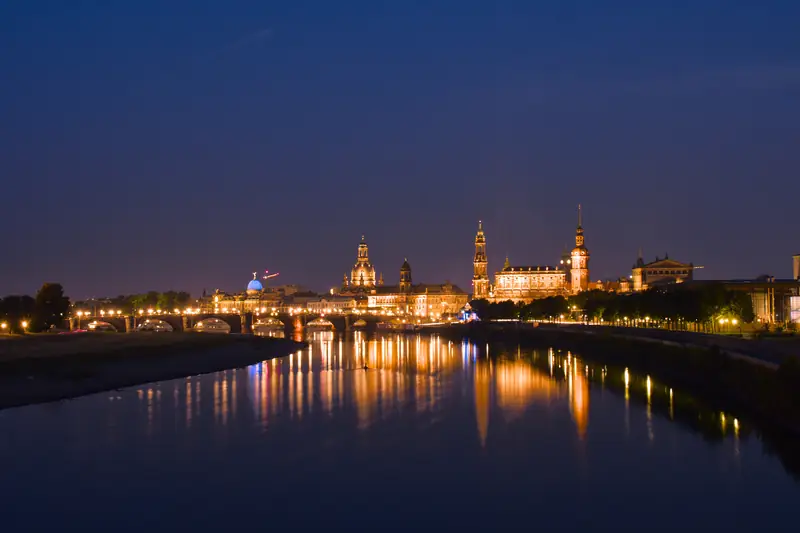
Step 1: Choose the colour of the night 
Step 1: Choose the colour of the night Step 2
Tame the lights
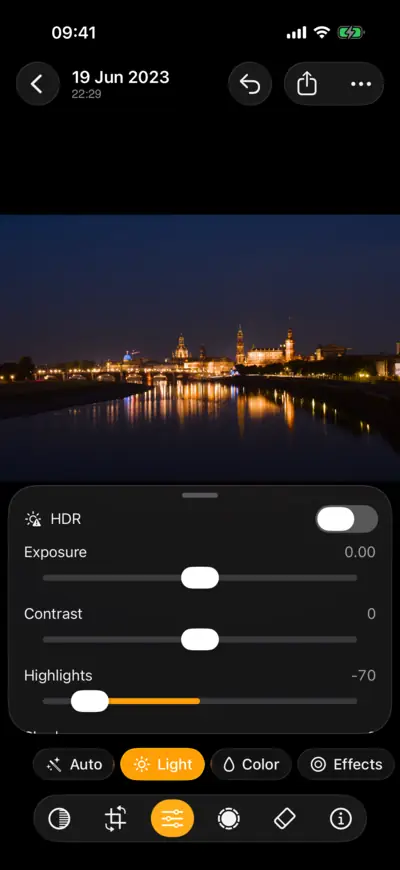
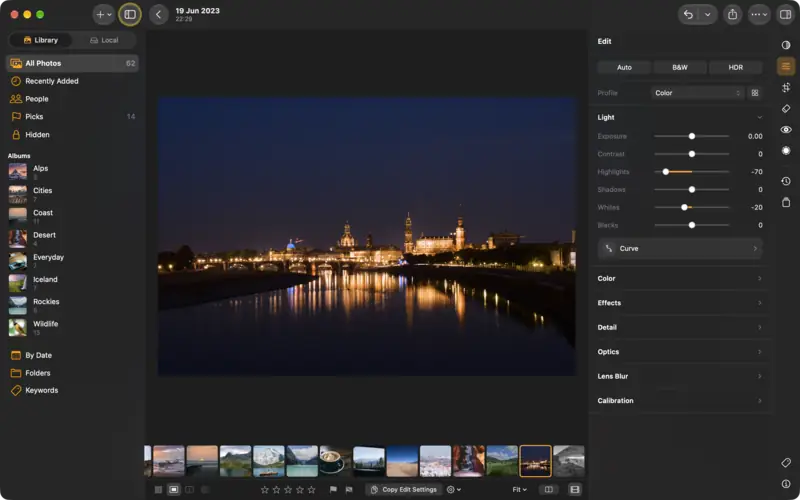
Settings
- Light
- Highlights
- −70
- Whites
- −20
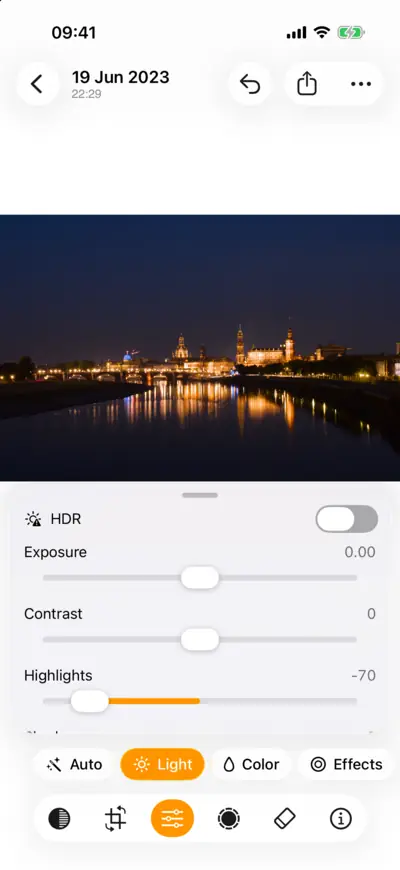
Step 2: Tame the lights 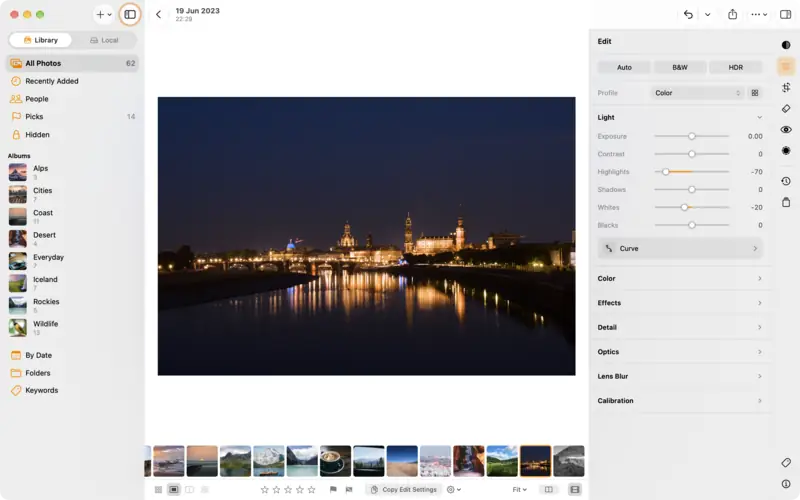
Step 2: Tame the lights Step 3
Open the shadows, keep the dark
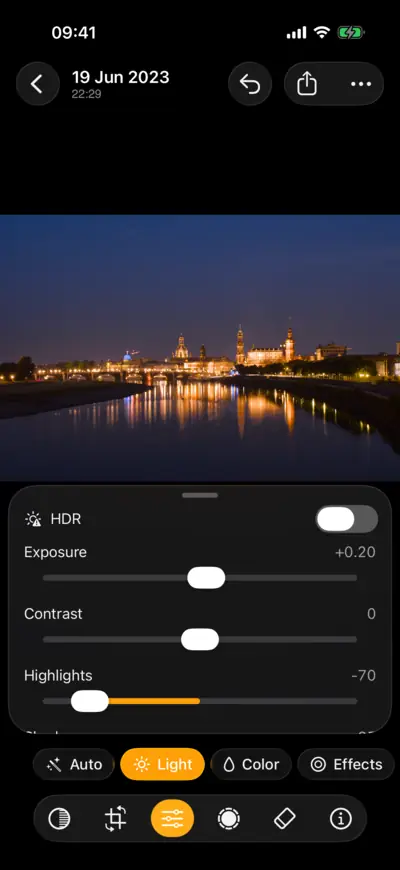
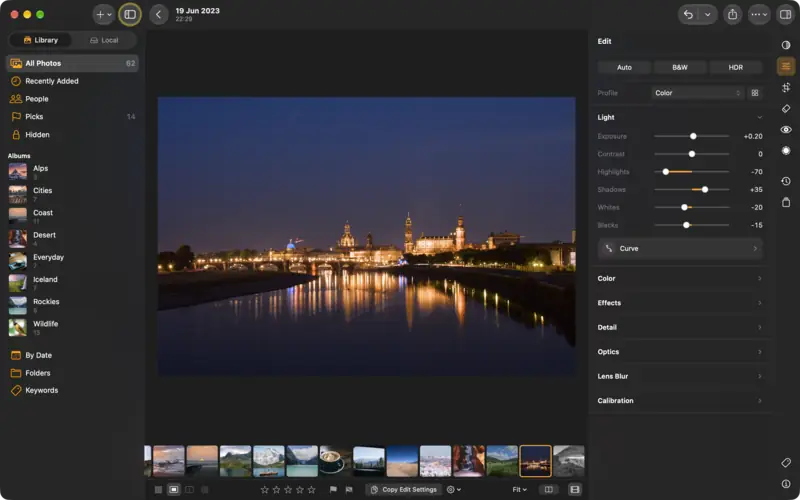
Settings
- Light
- Shadows
- +35
- Blacks
- −15
- Exposure
- +0.20
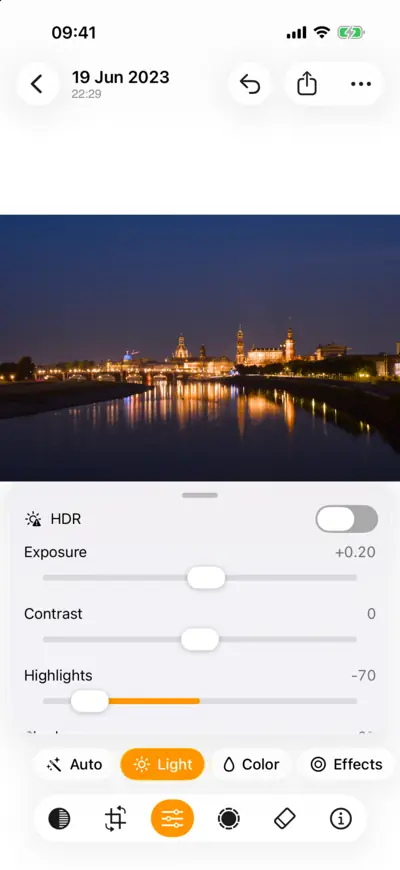
Step 3: Open the shadows, keep the dark 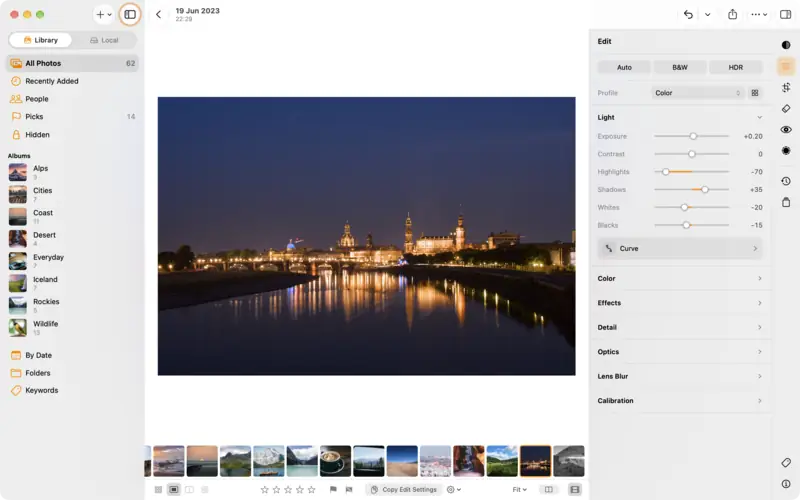
Step 3: Open the shadows, keep the dark Step 4
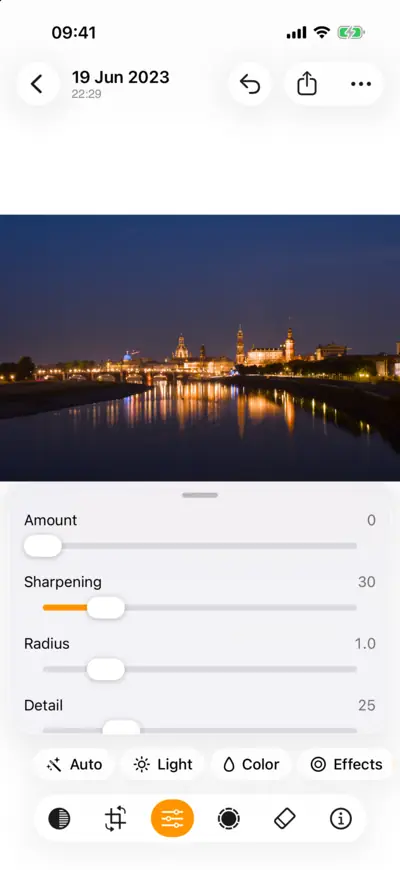
Clean up the noise
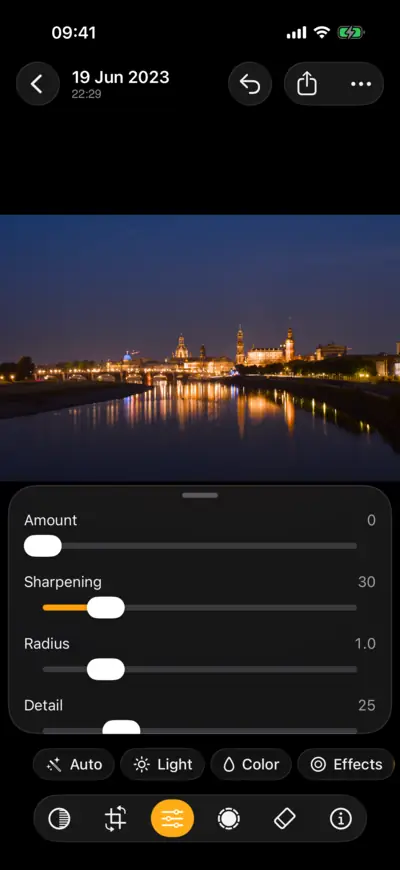
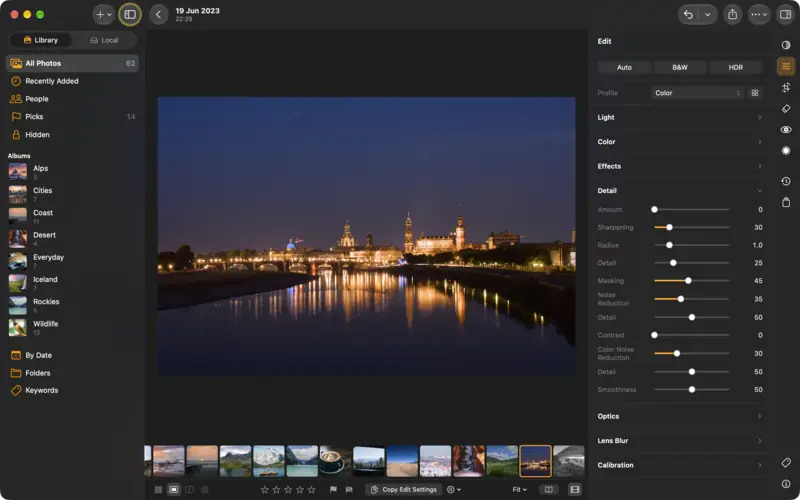
Settings
- Detail
- Noise Reduction
- +35
- Color Noise Reduction
- +30
- Sharpening
- +30
- Masking
- +45
Step 4: Clean up the noise 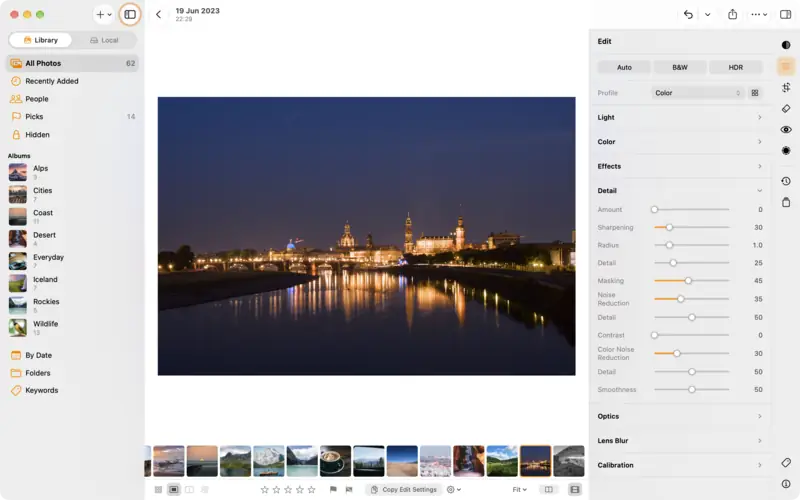
Step 4: Clean up the noise Step 5
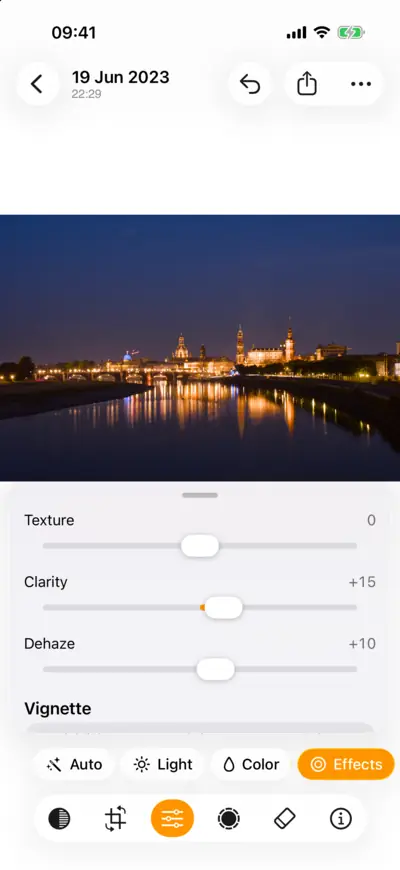
Make it glow
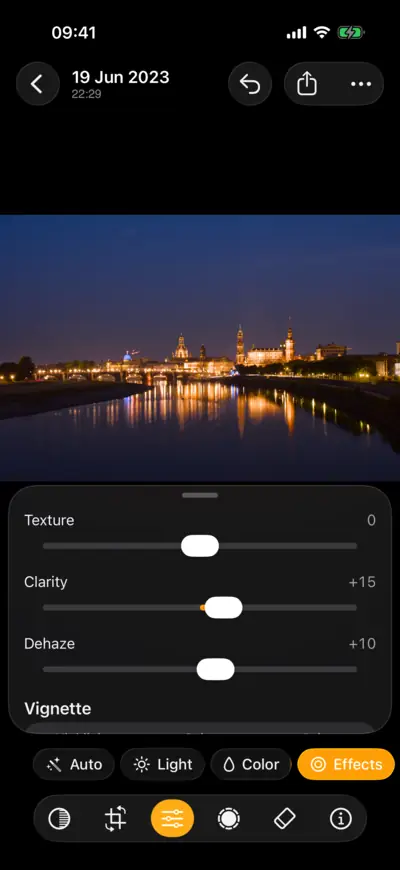
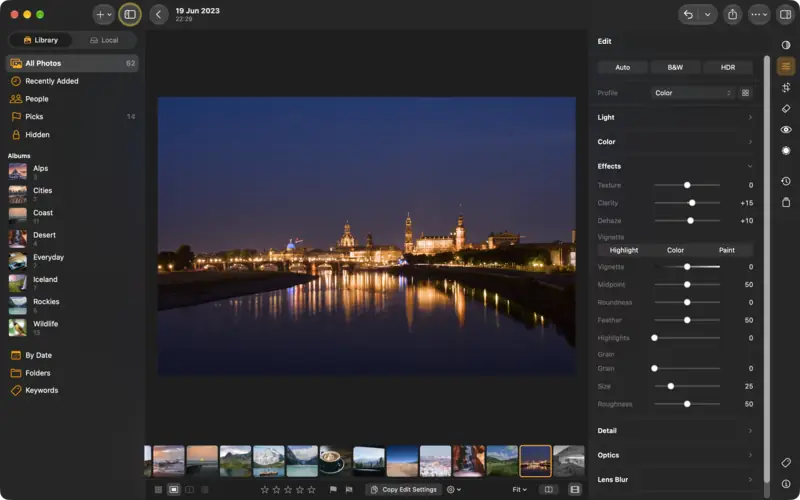
Settings
- Effects
- Clarity
- +15
- Dehaze
- +10
- Color
- Vibrance
- +15
Step 5: Make it glow 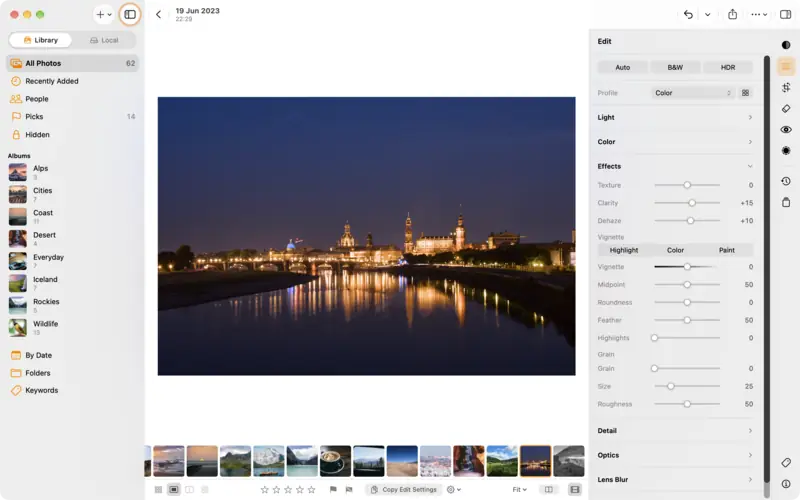
Step 5: Make it glow Step 6
Teal and orange (if you like)
Settings
- Color Grading
- Shadows Hue
- 200°
- Shadows Saturation
- +15
- Highlights Hue
- 35°
- Highlights Saturation
- +15
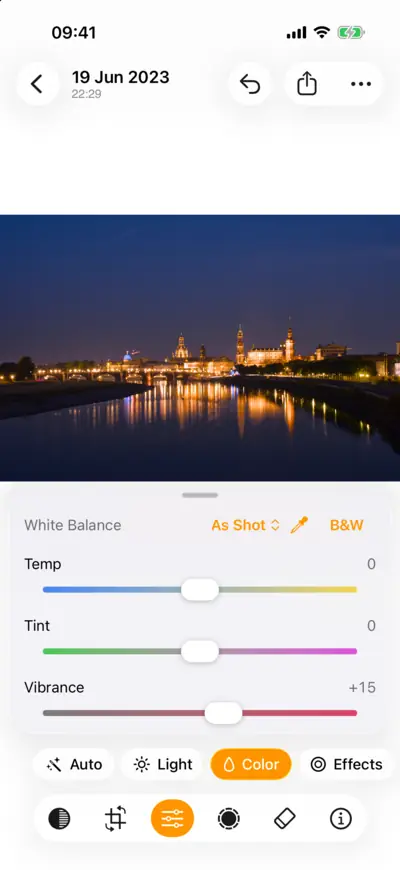
Step 6: Teal and orange (if you like) 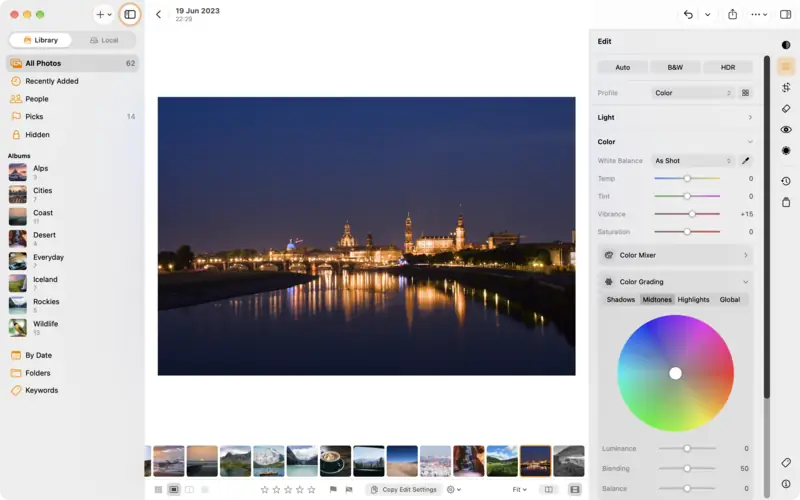
Step 6: Teal and orange (if you like)
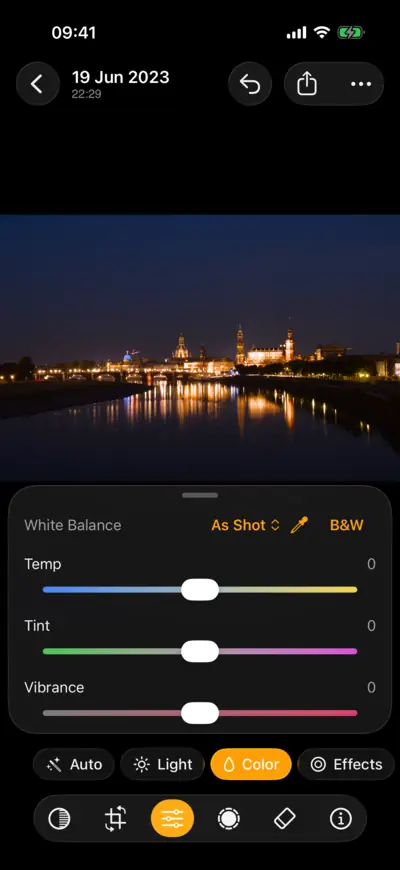
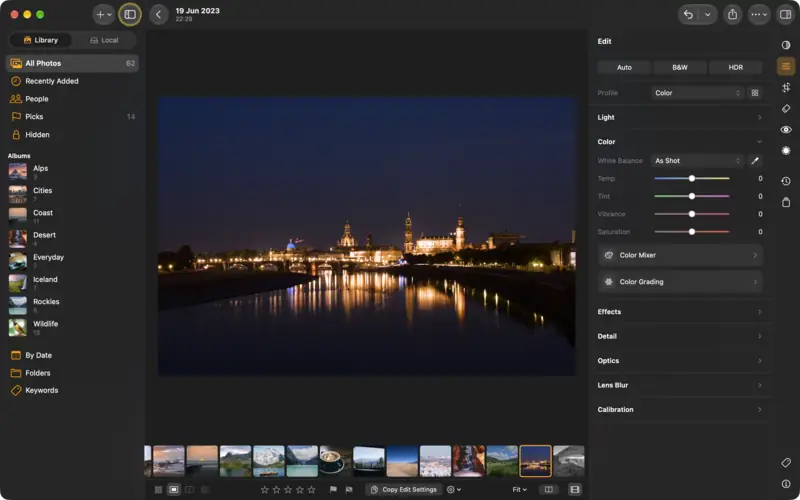
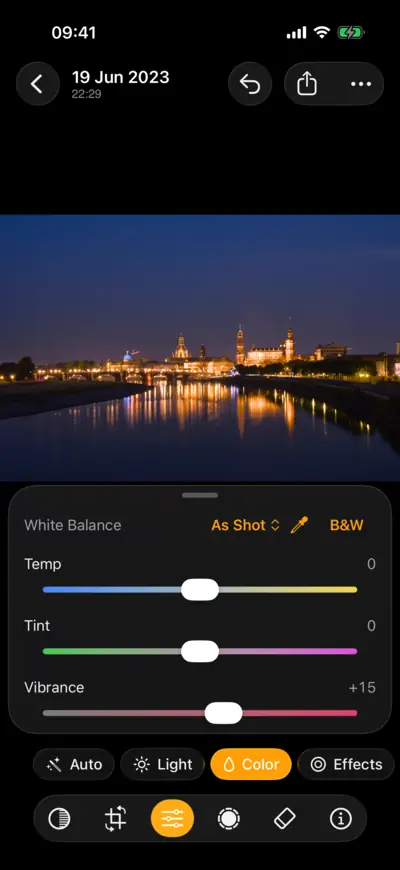
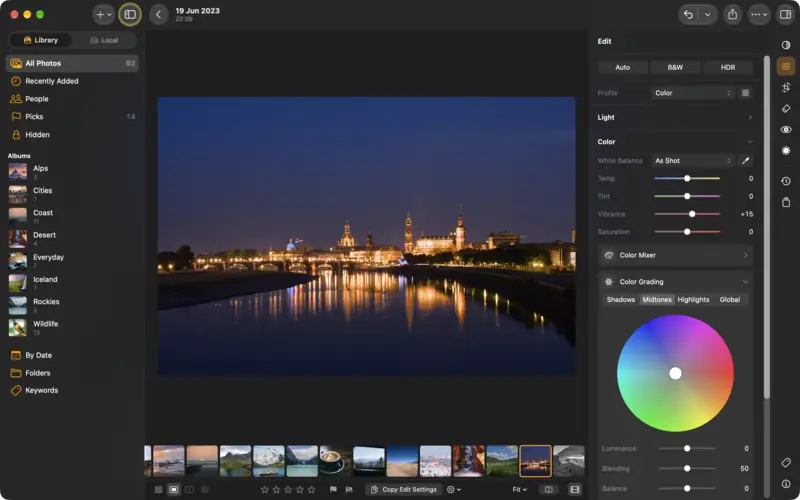
The whole edit
Every setting from the steps above, in order. On another photo, treat them as a starting point: a different light needs different numbers.
- Light
- Highlights
- −70
- Whites
- −20
- Shadows
- +35
- Blacks
- −15
- Exposure
- +0.20
- Detail
- Noise Reduction
- +35
- Color Noise Reduction
- +30
- Sharpening
- +30
- Masking
- +45
- Effects
- Clarity
- +15
- Dehaze
- +10
- Color
- Vibrance
- +15
- Color Grading
- Shadows Hue
- 200°
- Shadows Saturation
- +15
- Highlights Hue
- 35°
- Highlights Saturation
- +15
Follow along with the same photo
Download the raw file and edit it yourself with the steps above, then compare with the finished edit.
- 26.4 MB
Raw photo
Nikon D7100 · NEF
- 5 KB
Preset
“City Night”, the edit for any photo (without the crop and masks)
- 4 KB
Finished edit
XMP sidecar: every setting, the crop and the masks
Edit it from the start
Compare with the finished edit
Photo: Dresden skyline at night by semperit (discuss.pixls.us) · CC BY-SA 4.0
Questions
Read next
How to edit a raw photo, in the order the pros do
A raw file is where a great photo starts. The order to work in, from profile and white balance to tone, colour and sharpening, with a raw file to practise on.
Beginner8 min Raw + settings
How to make a black and white photo that pops
A black and white edit with depth: convert, mix the colours into the right greys, build contrast, and finish with grain. With the raw file to follow along.
Intermediate6 min Raw + settings