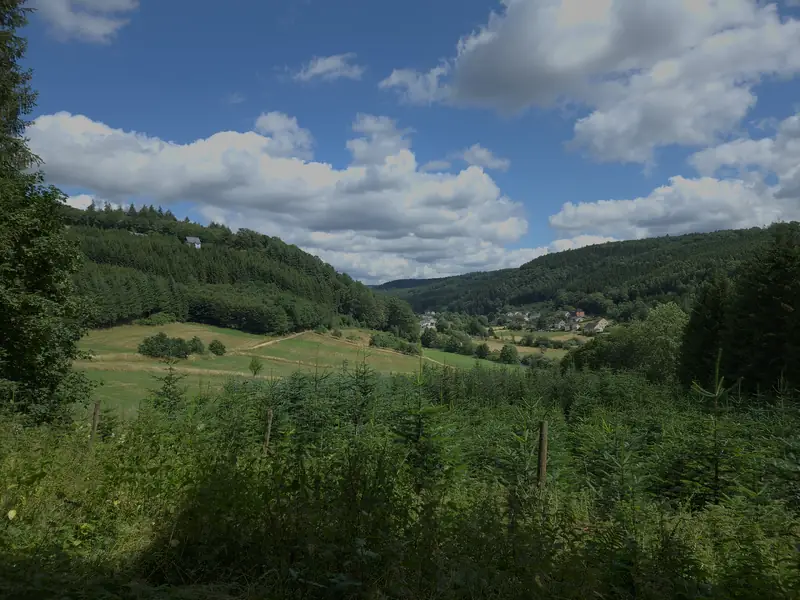
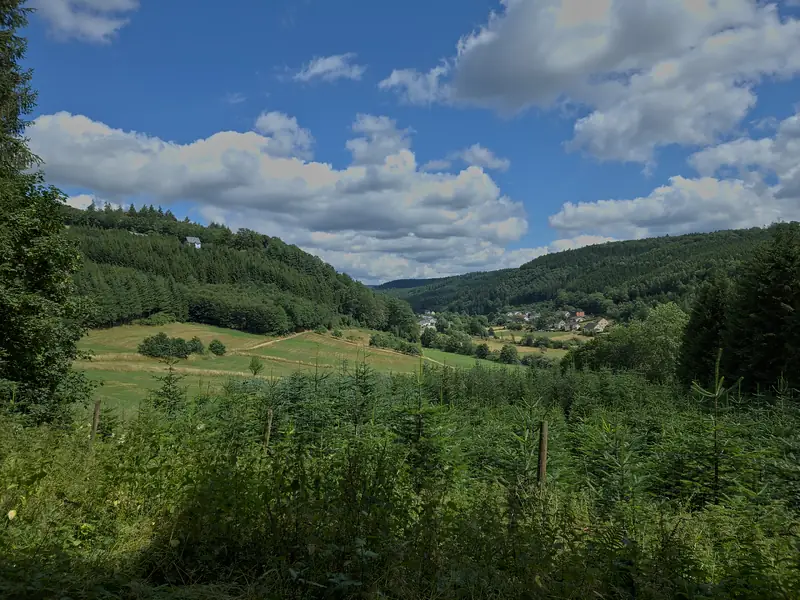
Step 1
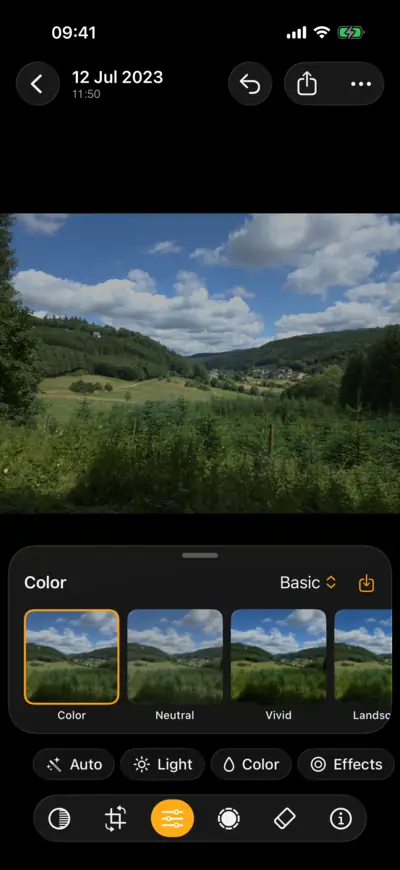
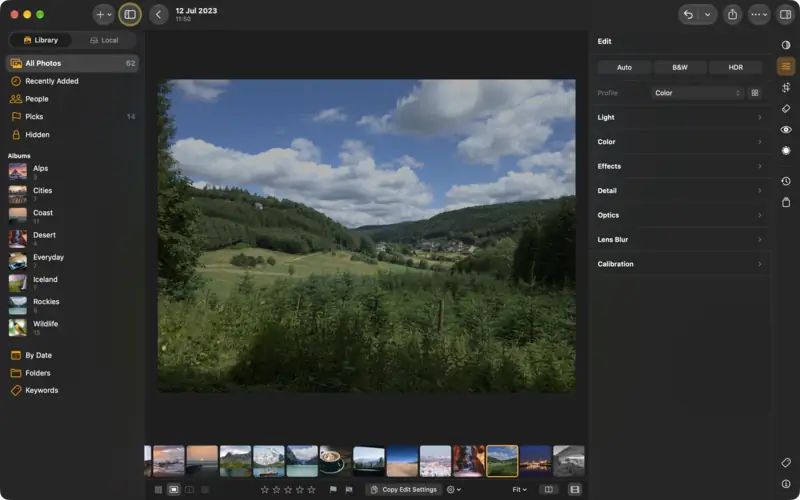
Start with the profile
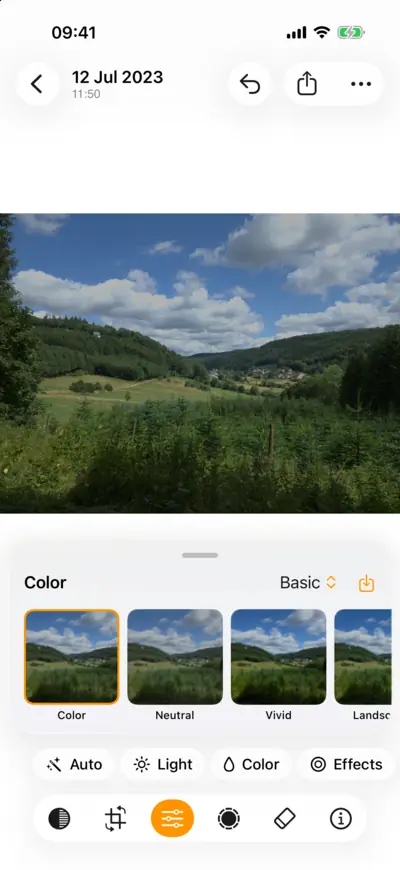
Step 1: Start with the profile 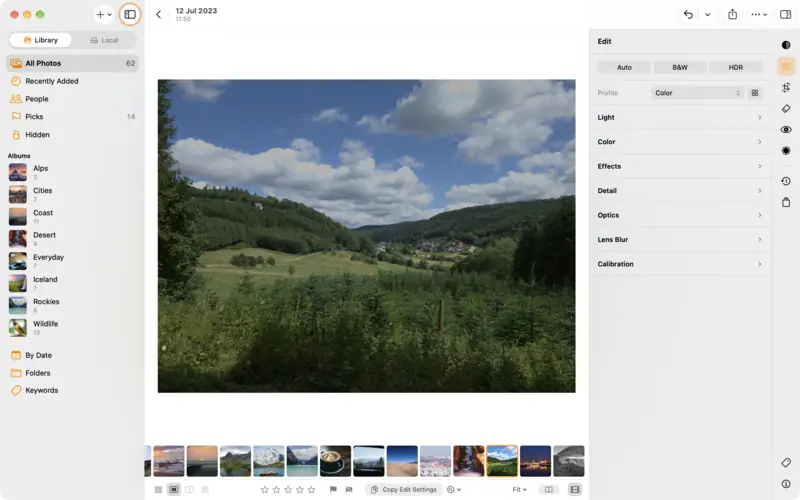
Step 1: Start with the profile Step 2
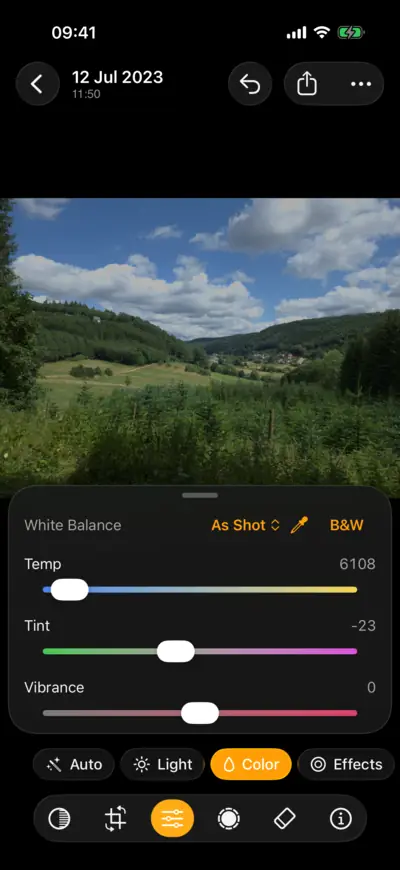
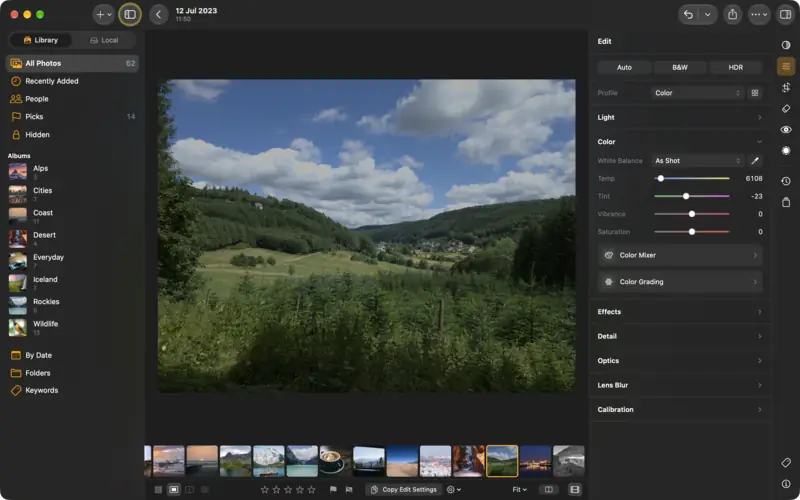
Set the white balance
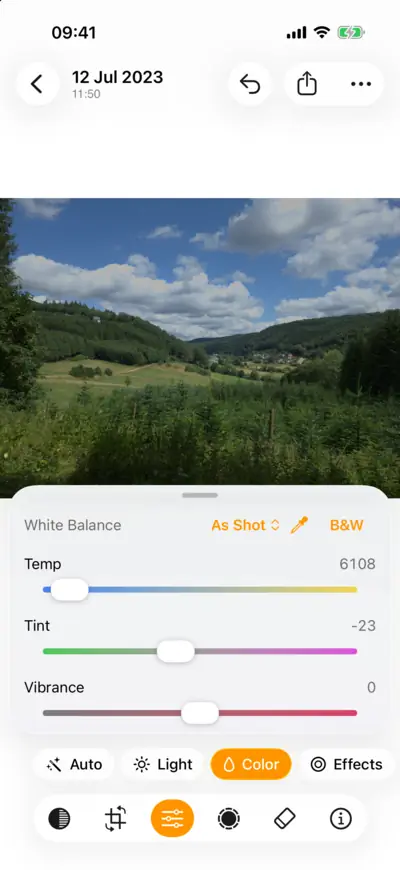
Step 2: Set the white balance 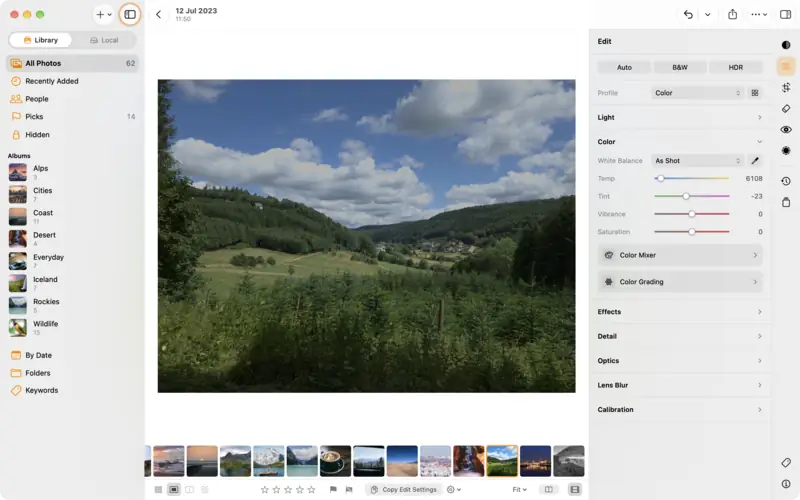
Step 2: Set the white balance Step 3
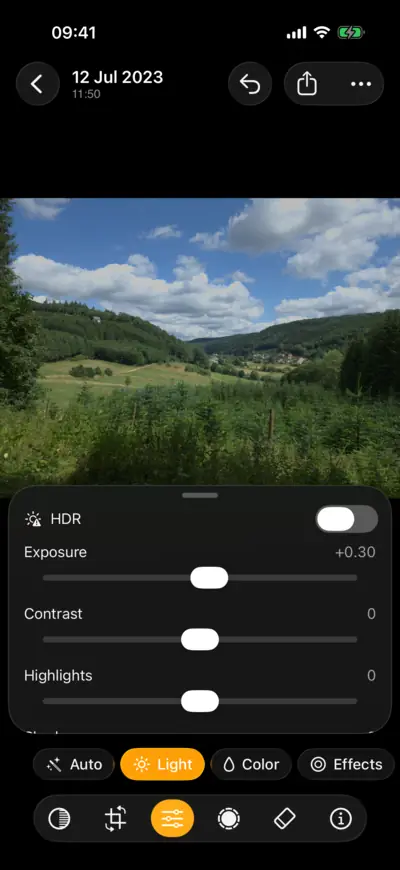
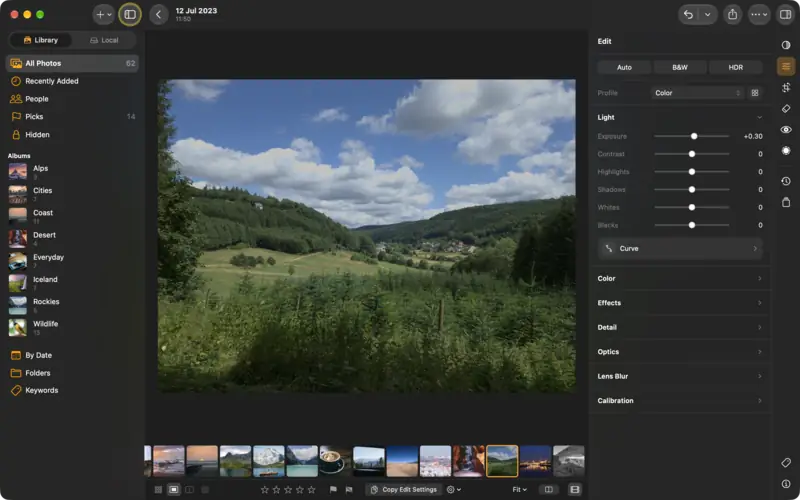
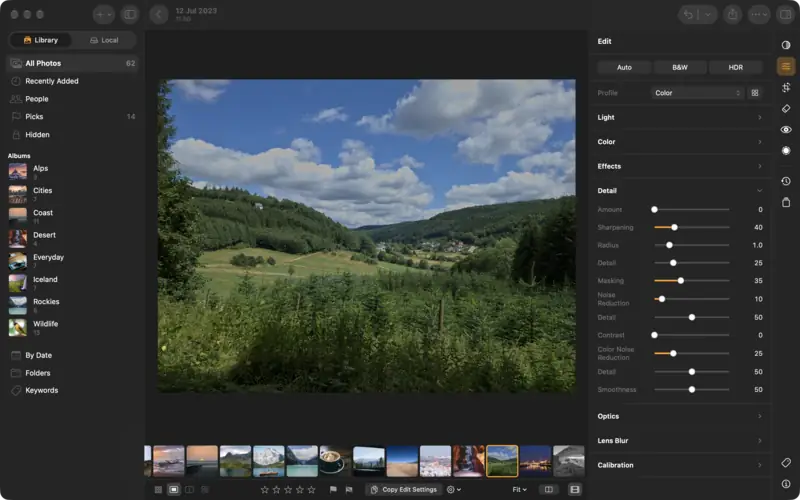
Get the exposure right
Settings
- Light
- Exposure
- +0.30
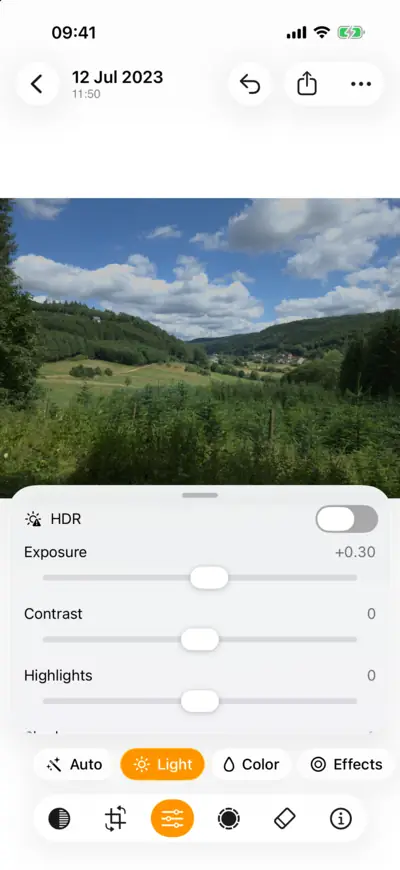
Step 3: Get the exposure right 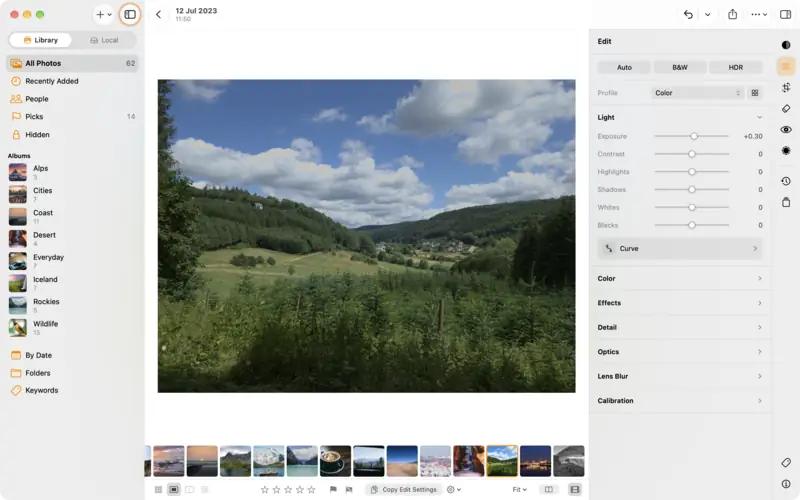
Step 3: Get the exposure right Step 4
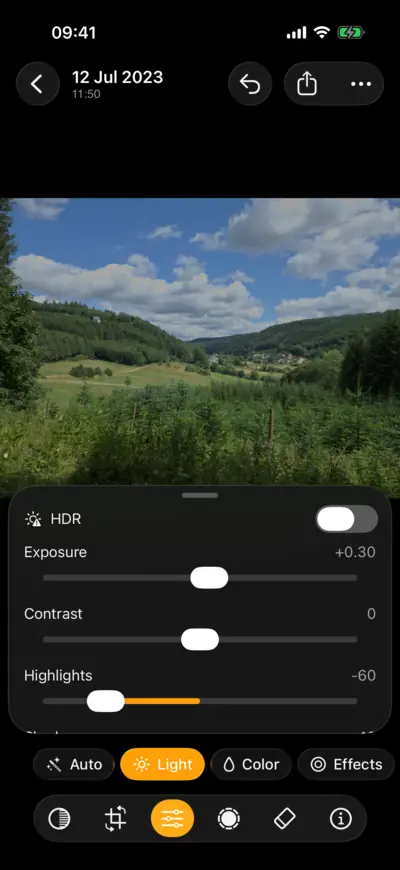
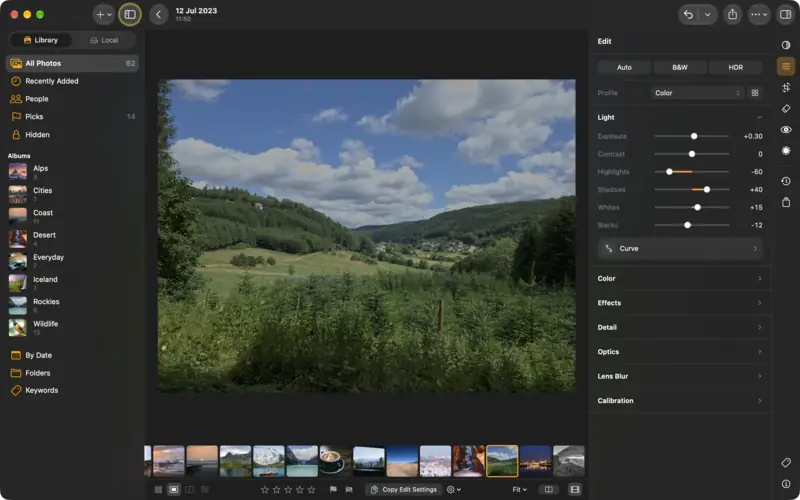
Bring back the highlights, open the shadows
Settings
- Light
- Highlights
- −60
- Shadows
- +40
- Whites
- +15
- Blacks
- −12
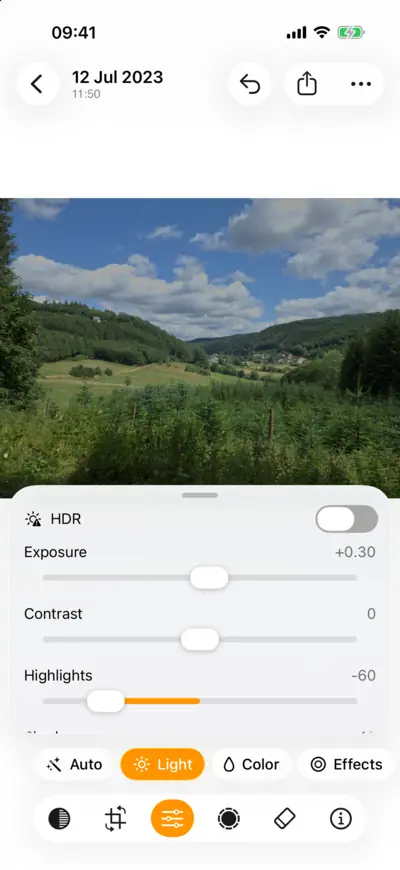
Step 4: Bring back the highlights, open the shadows 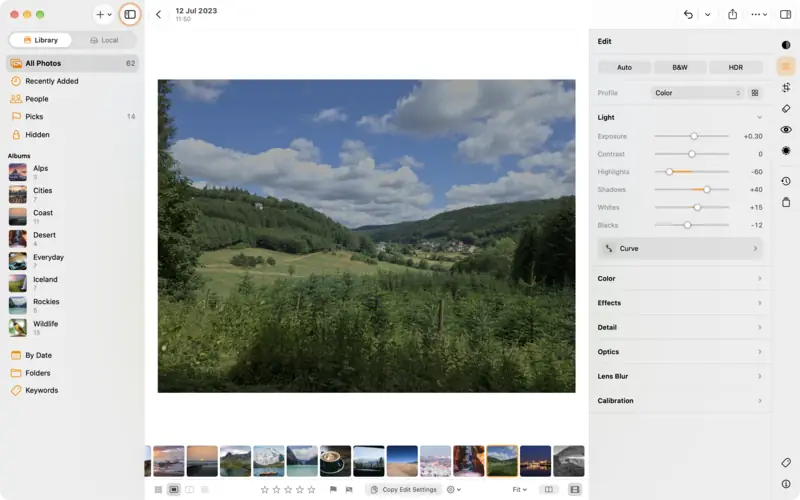
Step 4: Bring back the highlights, open the shadows Step 5
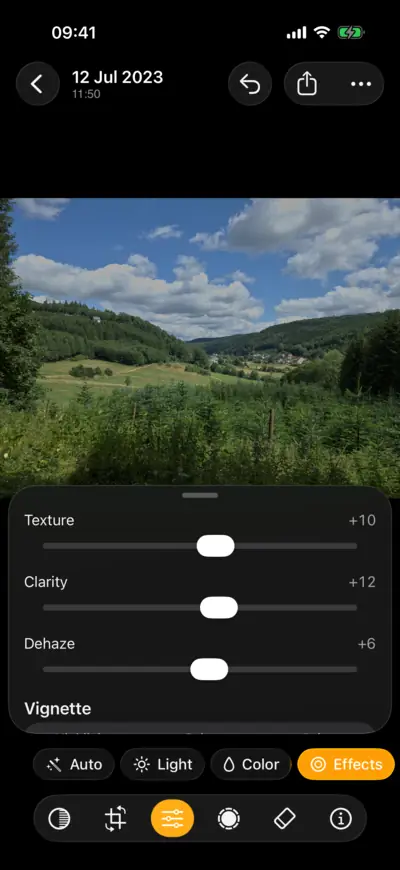
Add contrast and presence
Settings
- Light
- Contrast
- +12
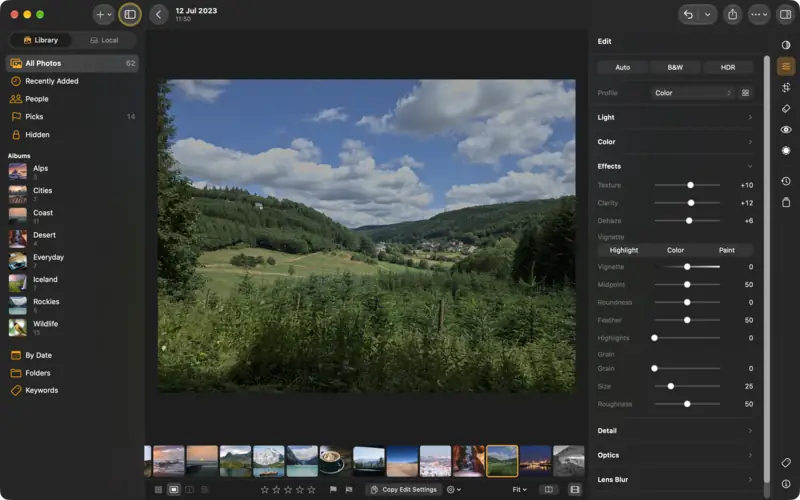
- Effects
- Texture
- +10
- Clarity
- +12
- Dehaze
- +6
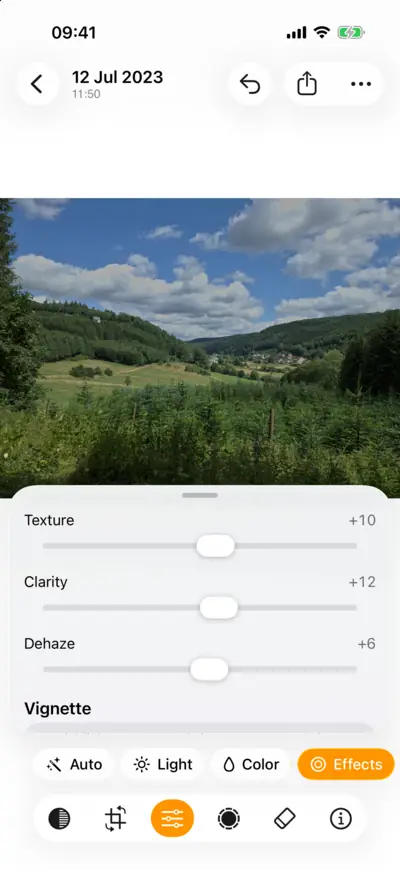
Step 5: Add contrast and presence 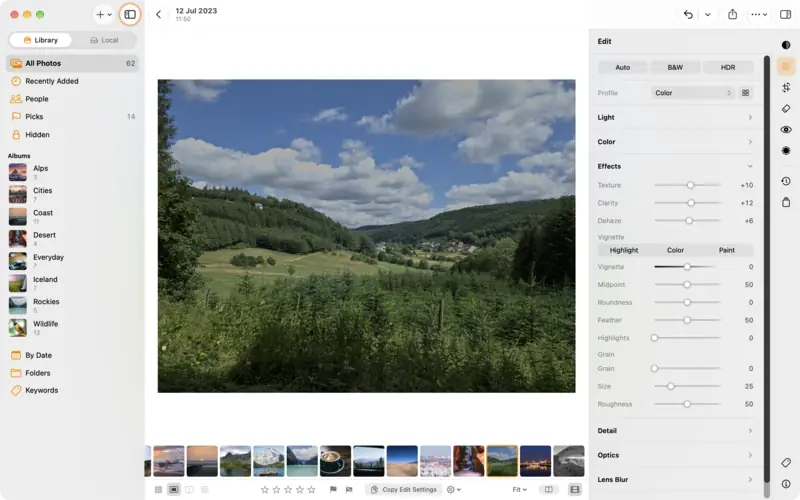
Step 5: Add contrast and presence Step 6
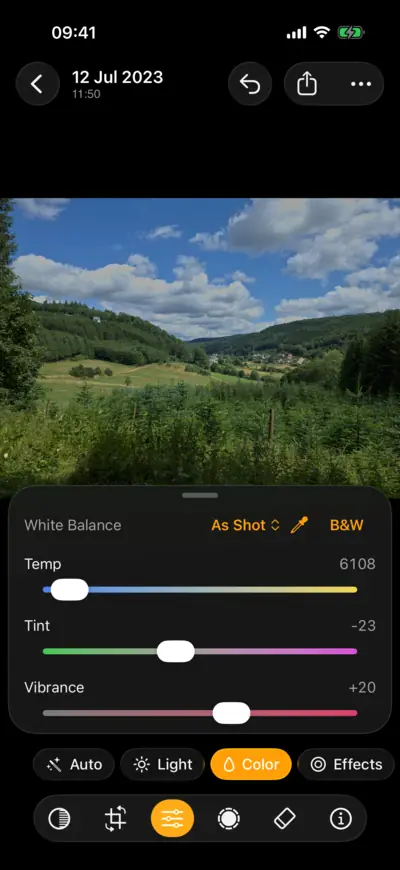
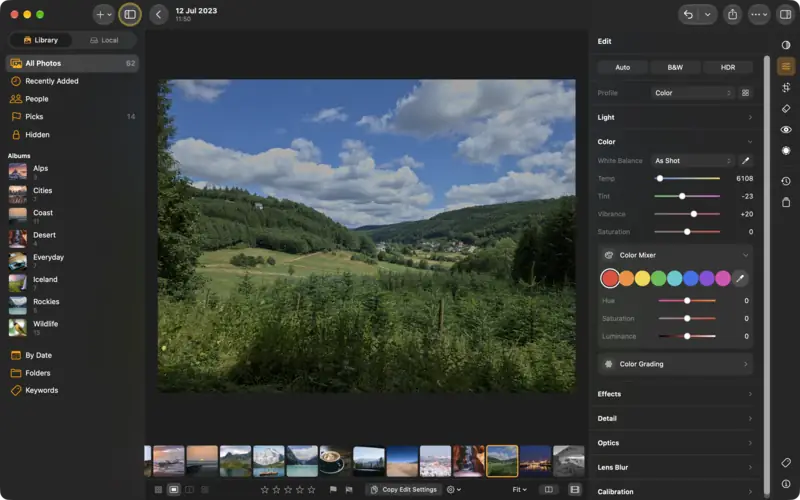
Colour: vibrance first
Settings
- Color
- Vibrance
- +20
- Color Mixer
- Blue Saturation
- +8
- Green Saturation
- −6
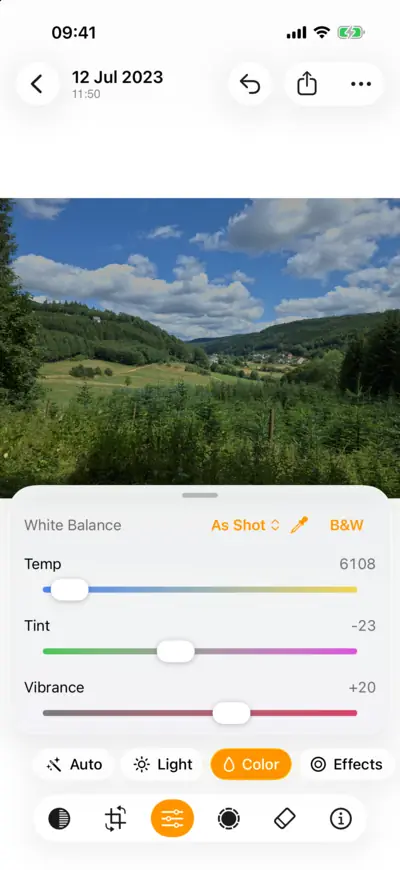
Step 6: Colour: vibrance first 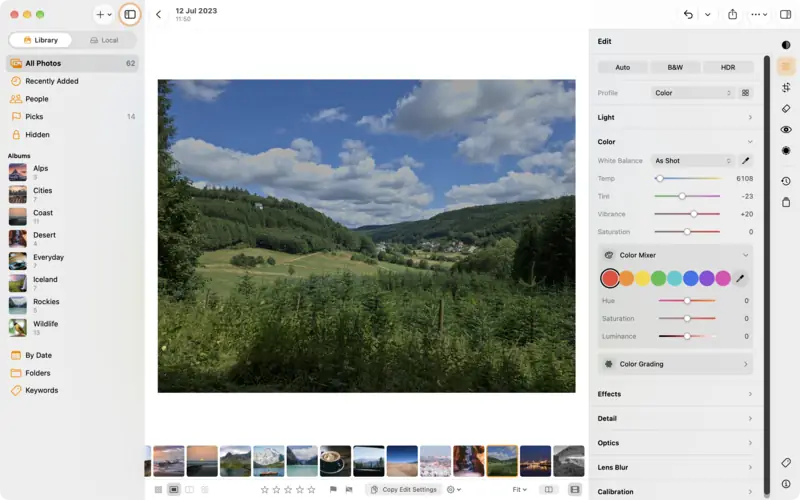
Step 6: Colour: vibrance first Step 7
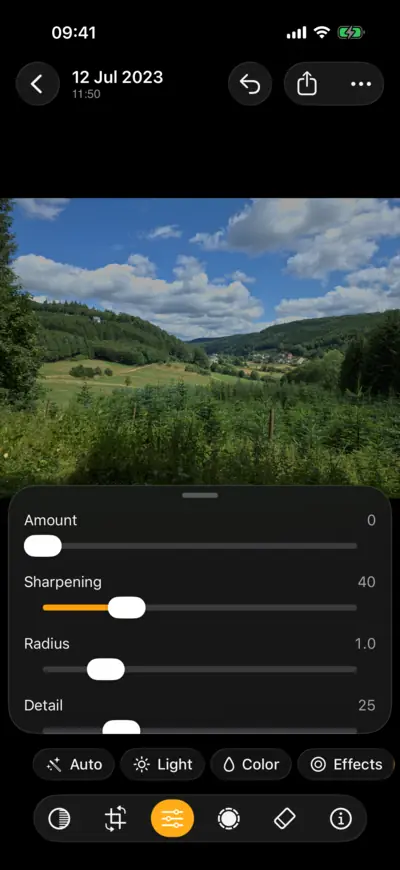
Sharpen and clean up noise
Settings
- Detail
- Sharpening
- +40
- Masking
- +35
- Noise Reduction
- +10
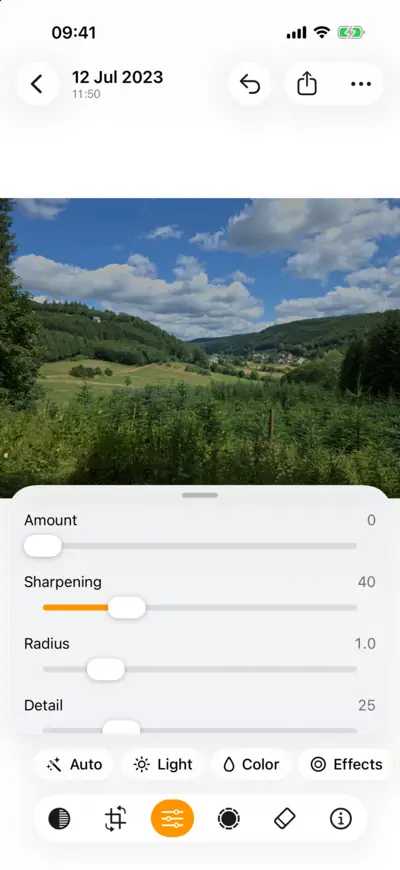
Step 7: Sharpen and clean up noise 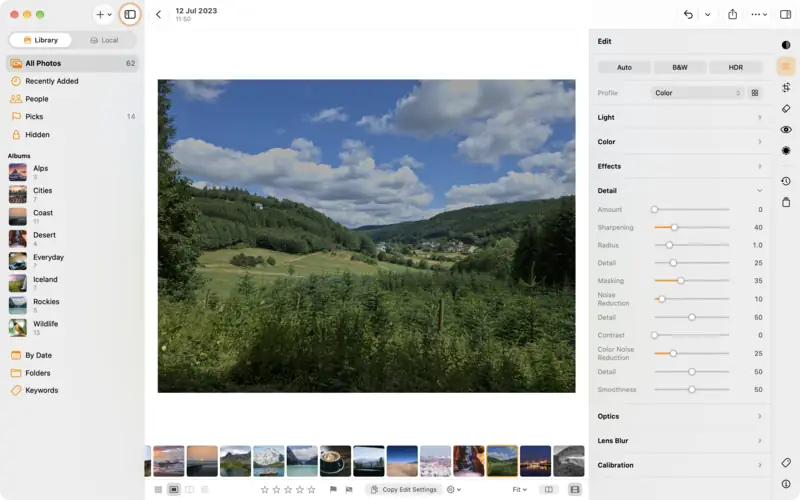
Step 7: Sharpen and clean up noise Step 8
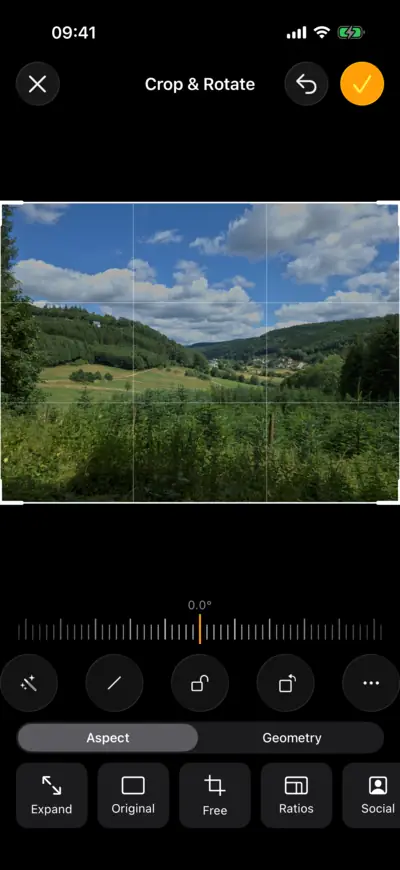
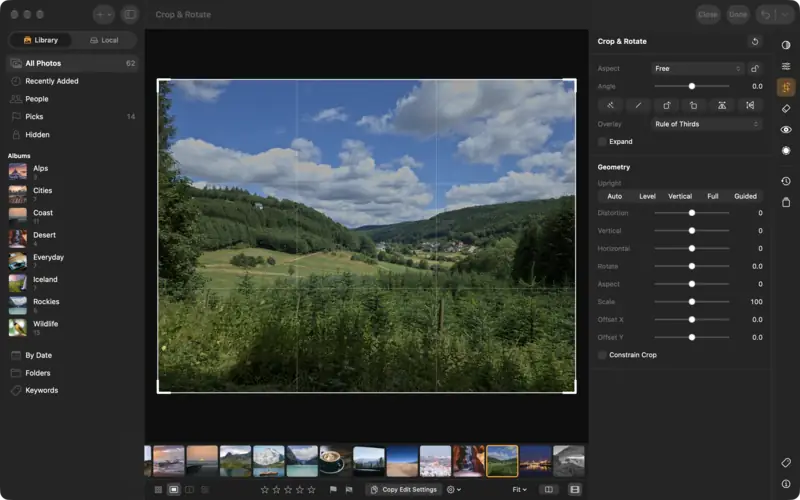
Straighten and crop
Settings
- Crop
- Straighten
- Auto
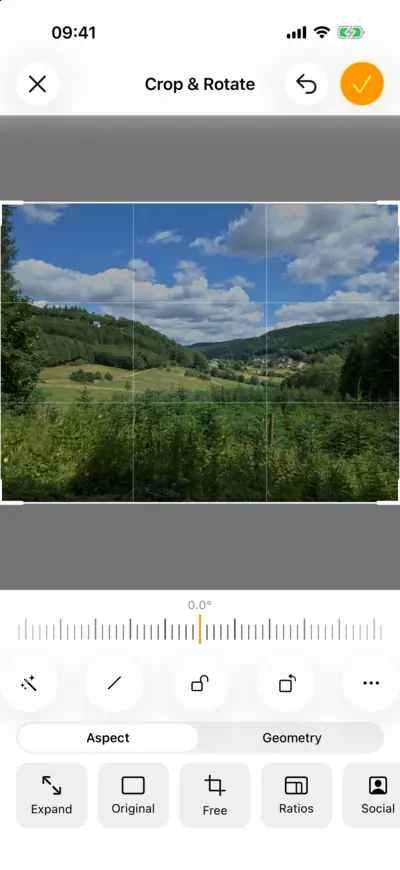
Step 8: Straighten and crop 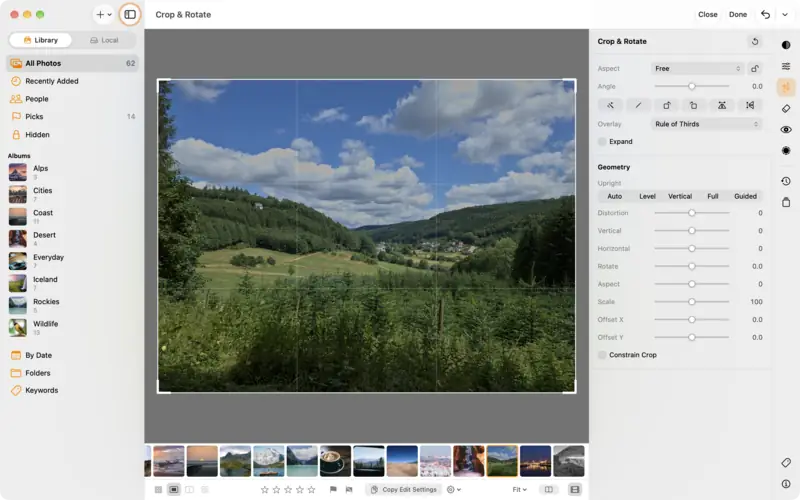
Step 8: Straighten and crop
The whole edit
Every setting from the steps above, in order. On another photo, treat them as a starting point: a different light needs different numbers.
- Light
- Exposure
- +0.30
- Highlights
- −60
- Shadows
- +40
- Whites
- +15
- Blacks
- −12
- Contrast
- +12
- Effects
- Texture
- +10
- Clarity
- +12
- Dehaze
- +6
- Color
- Vibrance
- +20
- Color Mixer
- Blue Saturation
- +8
- Green Saturation
- −6
- Detail
- Sharpening
- +40
- Masking
- +35
- Noise Reduction
- +10
- Crop
- Straighten
- Auto
Follow along with the same photo
Download the raw file and edit it yourself with the steps above, then compare with the finished edit.
- 37.8 MB
Raw photo
Samsung Galaxy S21 Ultra (SM-G998B) · DNG
- 5 KB
Preset
“Raw Workflow”, the edit for any photo (without the crop and masks)
- 4 KB
Finished edit
XMP sidecar: every setting, the crop and the masks
Edit it from the start
Compare with the finished edit
Photo: Landscape in soft daylight by raw.pixls.us contributor · CC0 1.0
Questions
Read next
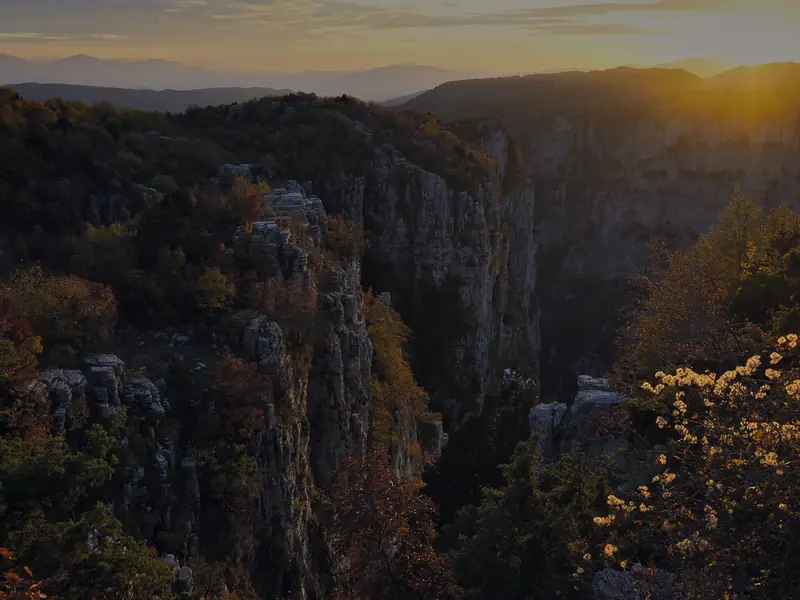
How to edit a sunset photo
Bring back a burnt-out sky, lift a dark foreground, and keep the warm glow of a sunset without making it look fake. With the raw file to follow along.
Intermediate7 min Raw + settings
Edit a photo: the basics
The editor in five minutes: the edit groups, Auto, the Light and Color sliders, comparing before and after, undo, and dials or sliders.
Beginner5 min