Step 1
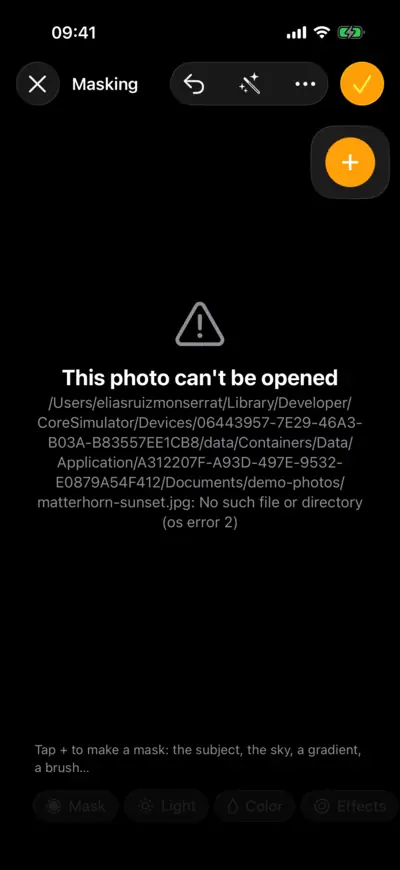
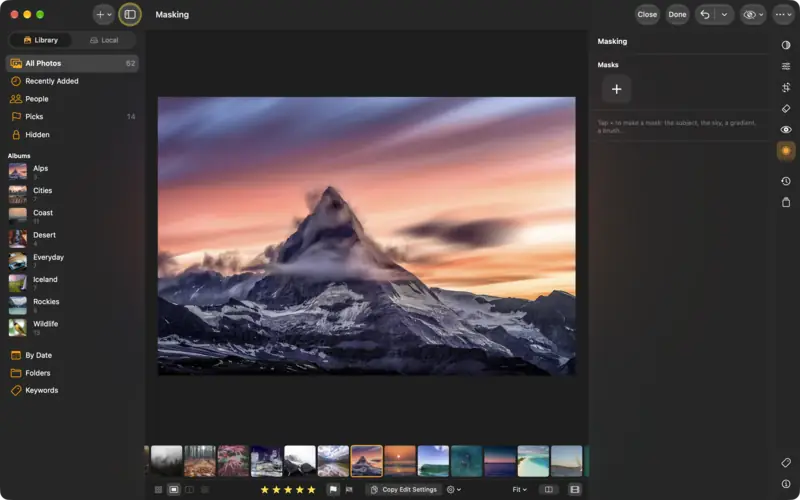
Open Masking
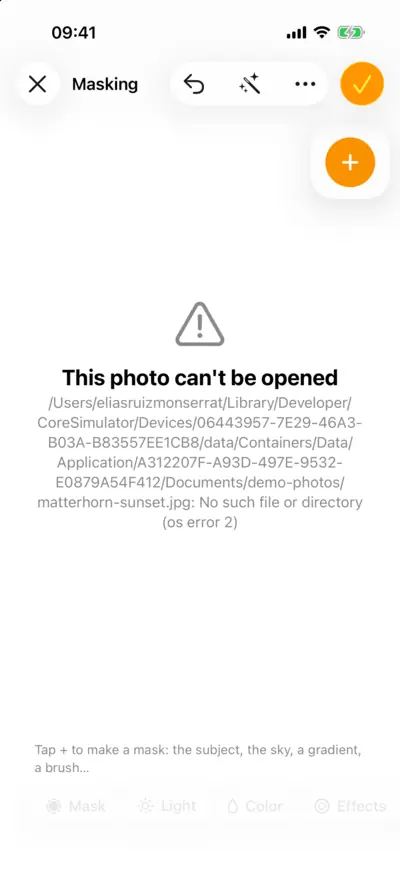
Step 1: Open Masking 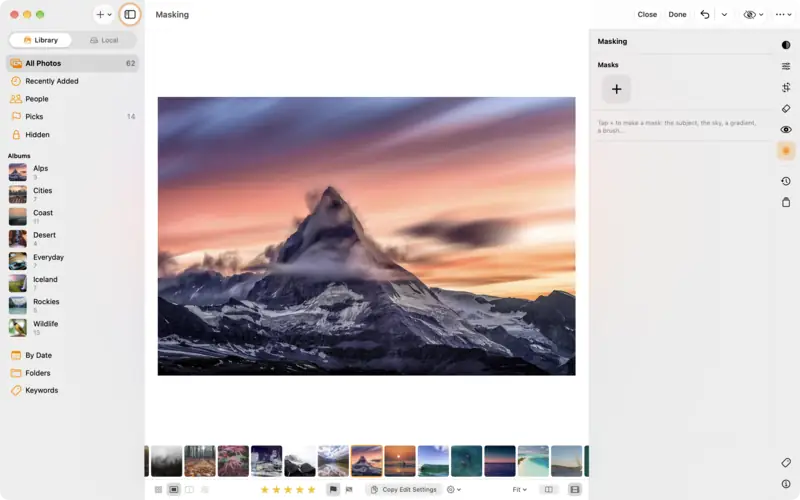
Step 1: Open Masking Step 2
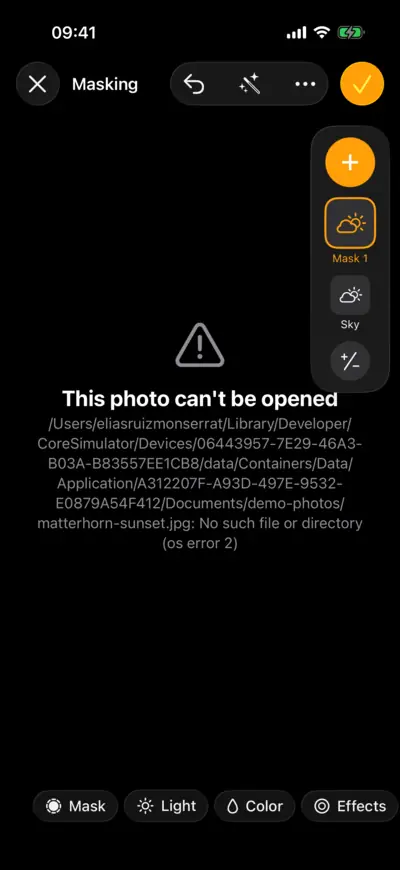
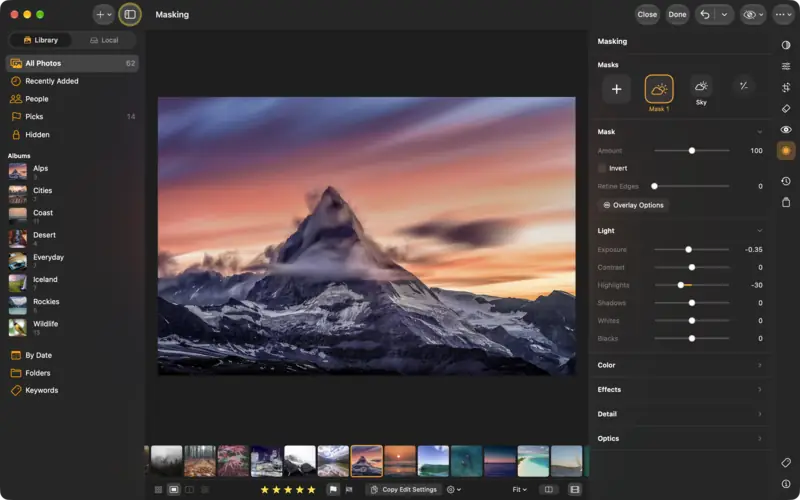
Select the sky
Settings
- Masking
- New mask
- Select Sky
- Mask: Select Sky
- Exposure
- −0.35
- Highlights
- −30
- Saturation
- +15
- Dehaze
- +10
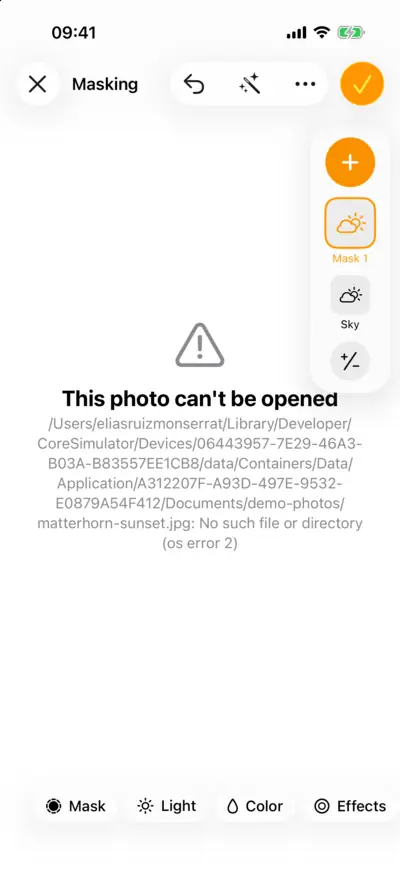
Step 2: Select the sky 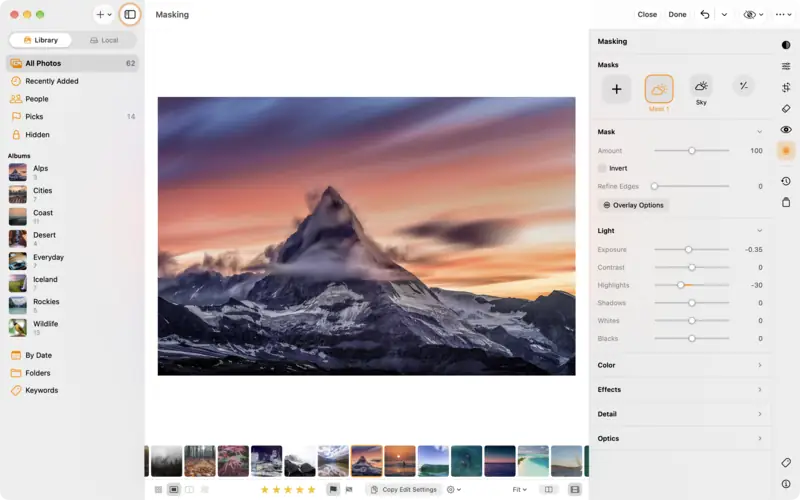
Step 2: Select the sky Step 3
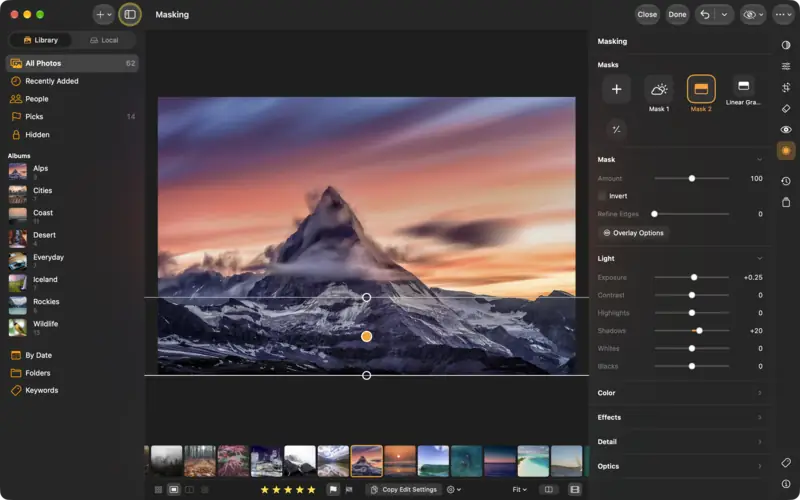
Fade an edit with a gradient
Settings
- Masking
- New mask
- Linear Gradient
- Mask: Linear Gradient
- Exposure
- +0.25
- Shadows
- +20
Step 3: Fade an edit with a gradient 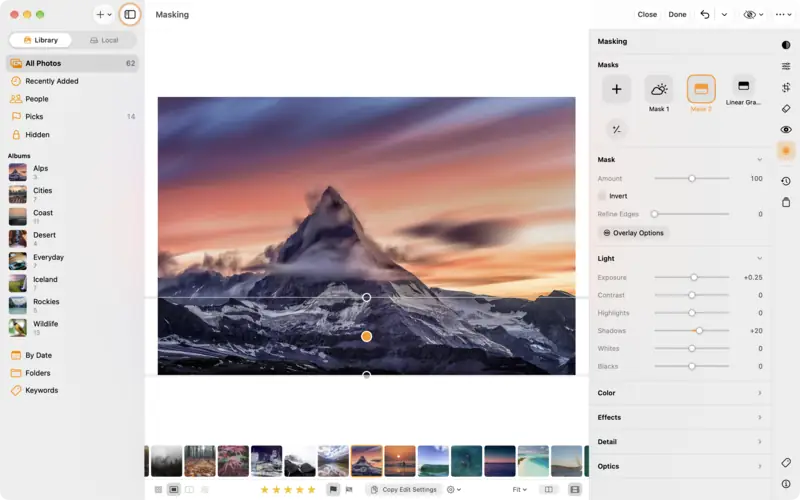
Step 3: Fade an edit with a gradient Step 4
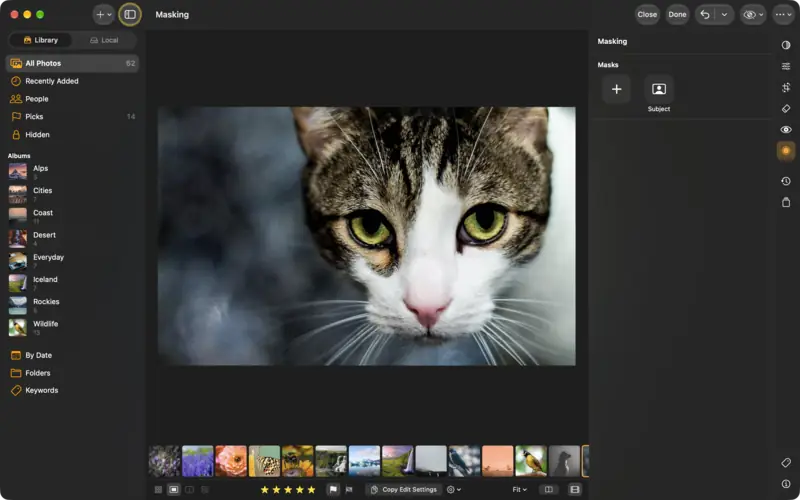
Select the subject
Settings
- Masking
- New mask
- Select Subject
- Mask: Select Subject
- Exposure
- +0.30
- Clarity
- +10
Step 4: Select the subject 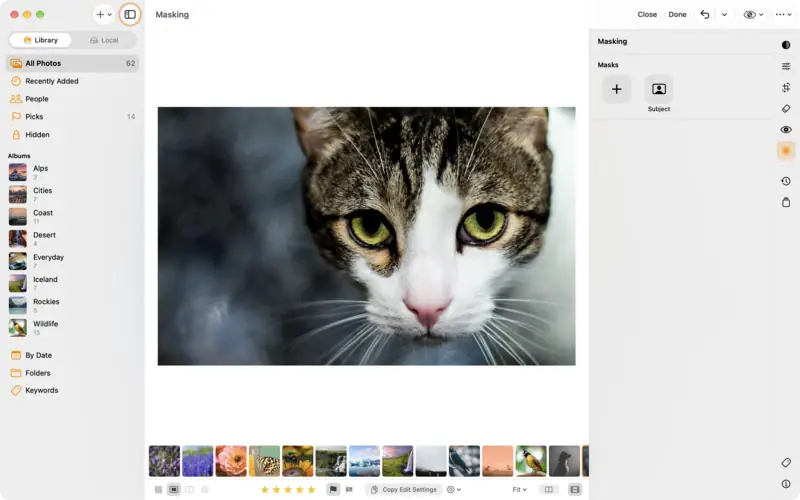
Step 4: Select the subject Step 5
Add, subtract, fine-tune
Questions
No. Select Subject and Select Object use the model built into your iPhone, iPad or Mac, and Select Sky works on the device too.
Yes: Copy Settings… (in the photo's … menu) lets you tick Masking, which is left out unless you ask for it.
Read next
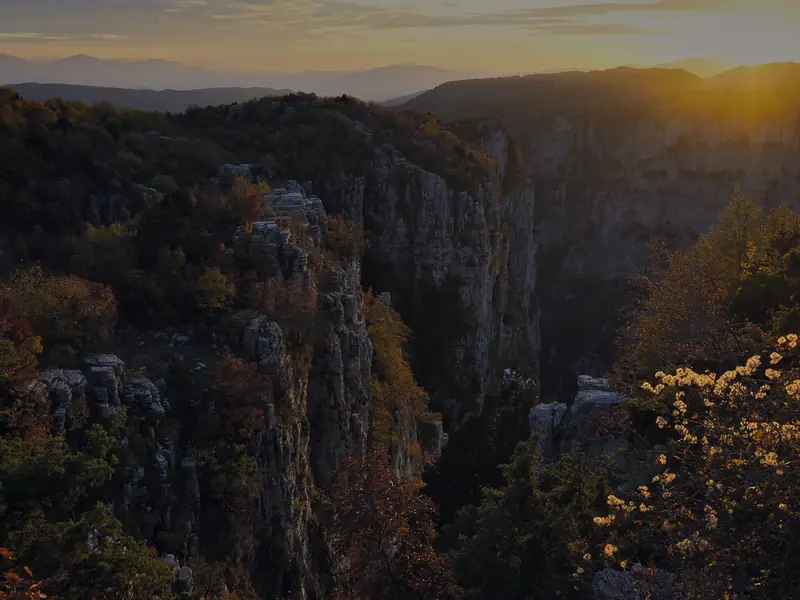
How to edit a sunset photo
Bring back a burnt-out sky, lift a dark foreground, and keep the warm glow of a sunset without making it look fake. With the raw file to follow along.
Intermediate7 min Raw + settings
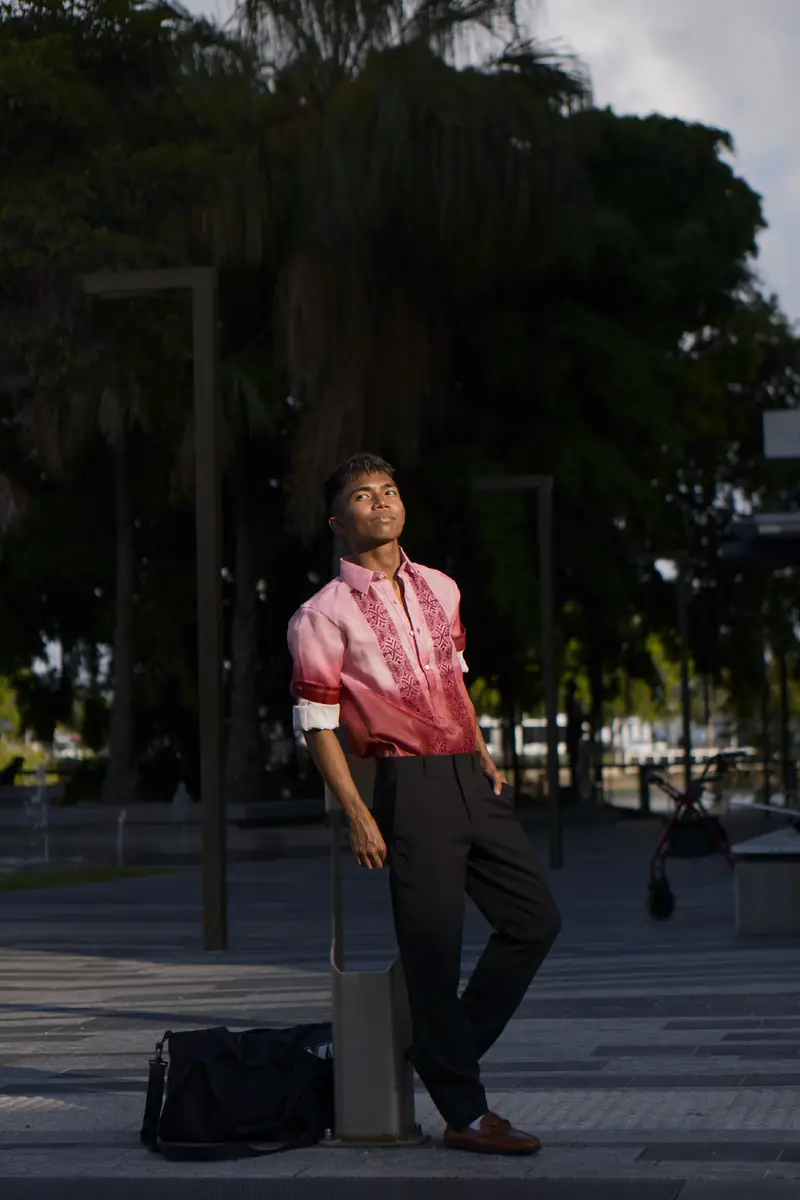
How to edit a portrait naturally
A natural portrait edit: light the face, even out skin tones, make the subject stand out from a softer background. With the raw file to follow along.
Intermediate7 min Raw + settings