Step 1
Light the face
Settings
- Light
- Exposure
- +0.20
- Highlights
- −25
- Shadows
- +20
- Contrast
- −5
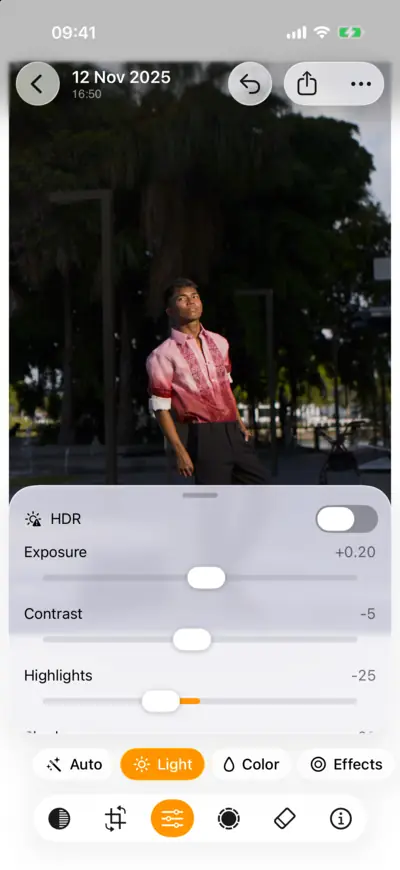
Step 1: Light the face 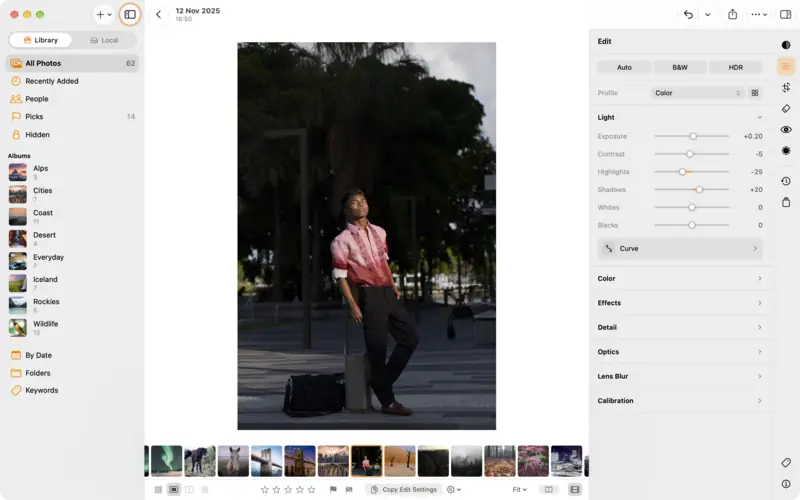
Step 1: Light the face Step 2
Even out the skin tones
Settings
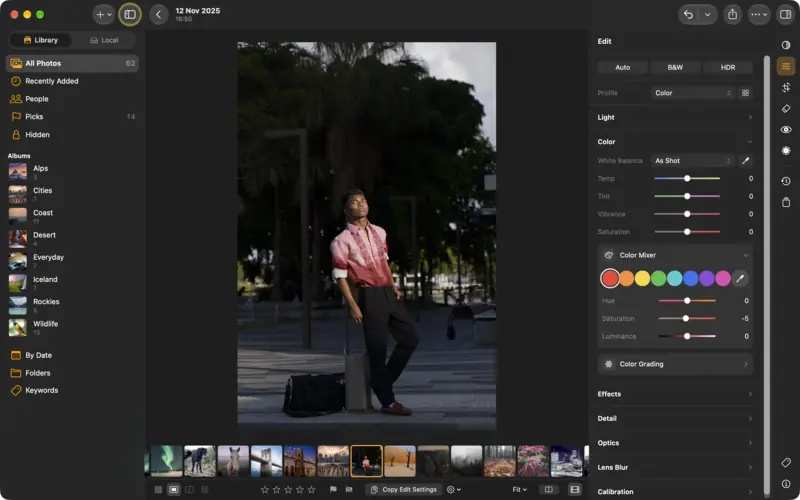
- Color Mixer
- Orange Saturation
- −8
- Orange Luminance
- +8
- Red Saturation
- −5
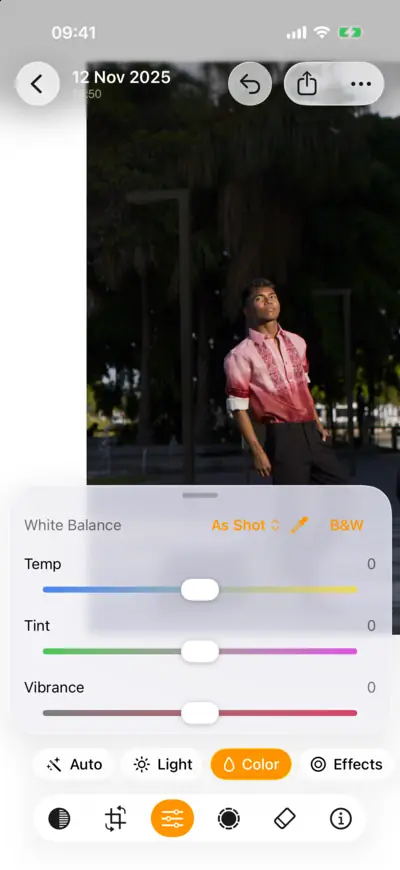
Step 2: Even out the skin tones 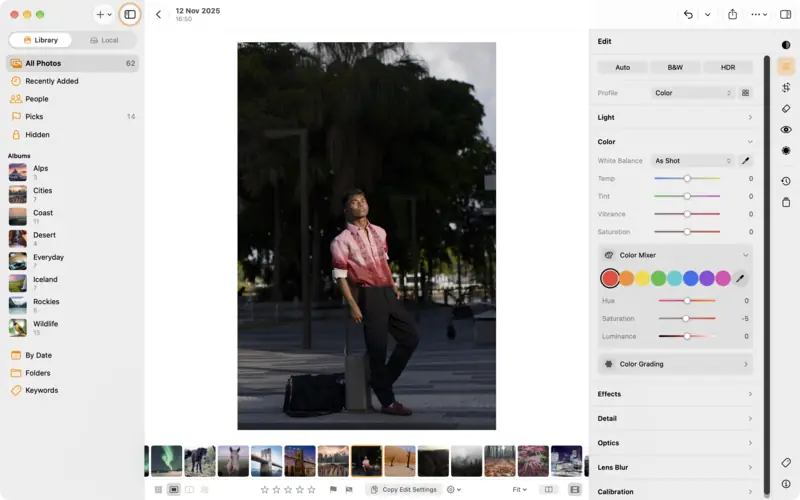
Step 2: Even out the skin tones Step 3
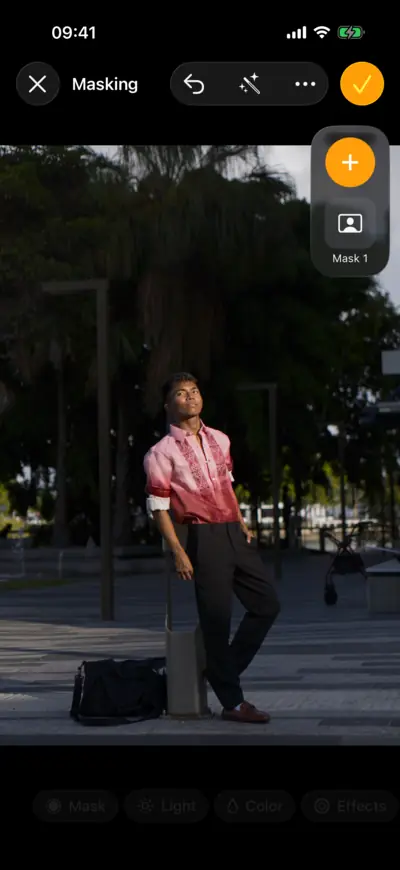
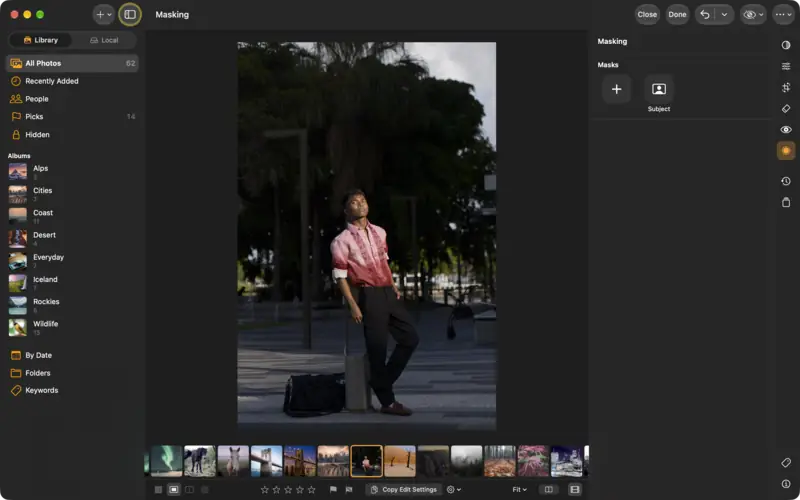
Make the subject stand out
Settings
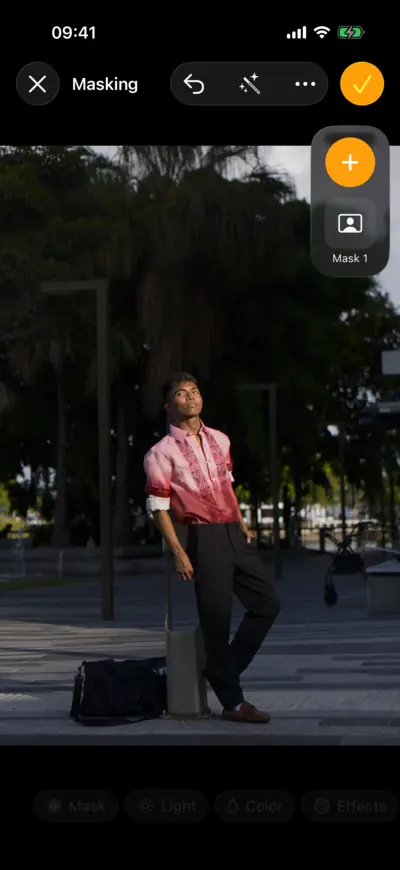
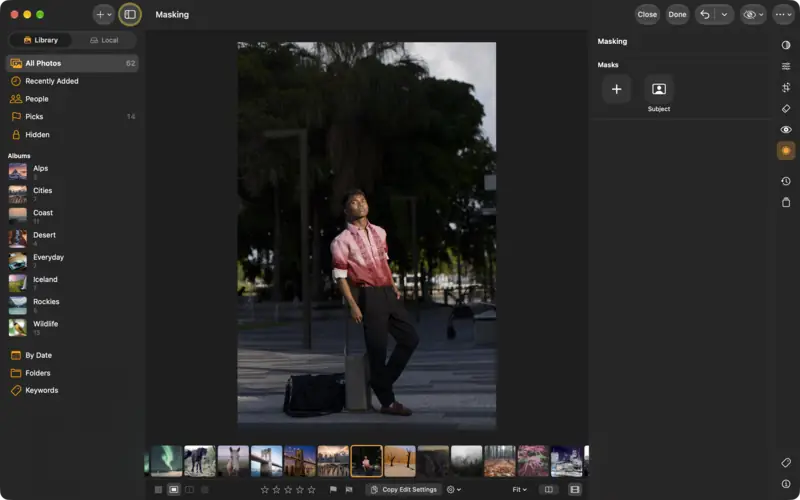
- Masking
- New mask
- Select Subject
- Mask: Select Subject
- Exposure
- +0.20
- Texture
- −15
- Clarity
- −5
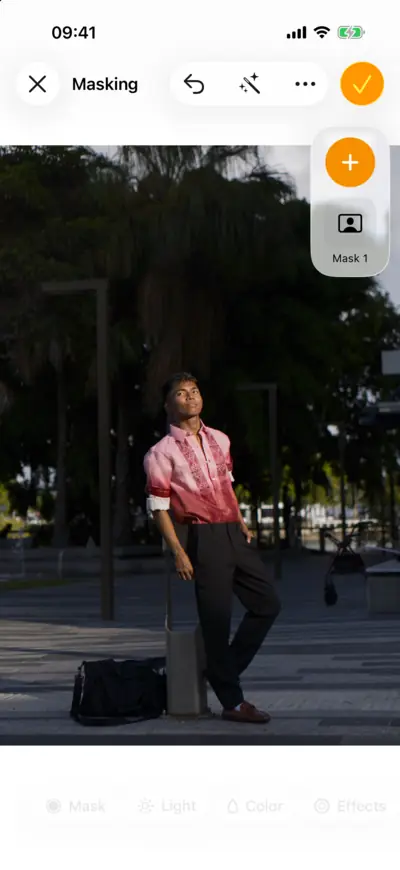
Step 3: Make the subject stand out 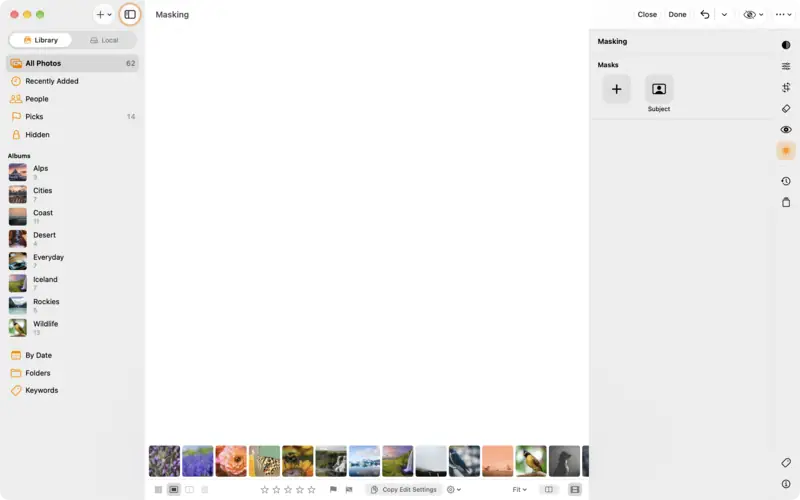
Step 3: Make the subject stand out Step 4
Let the background step back
Settings
- Masking
- New mask
- Select Background
- Mask: Select Background
- Exposure
- −0.30
- Saturation
- −12
- Clarity
- −15
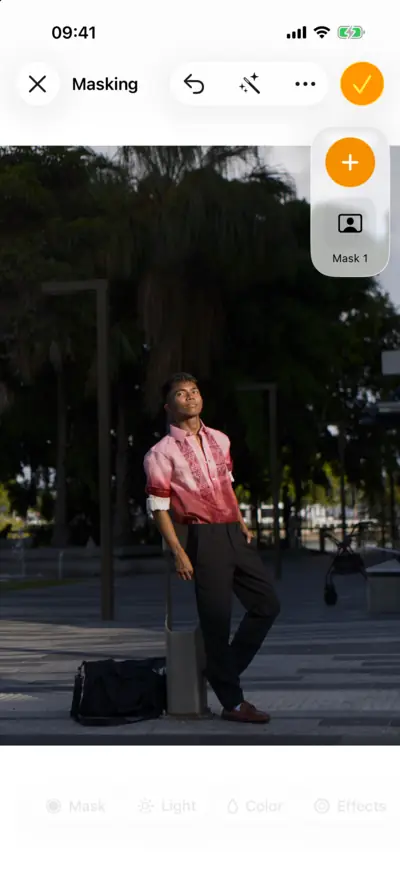
Step 4: Let the background step back 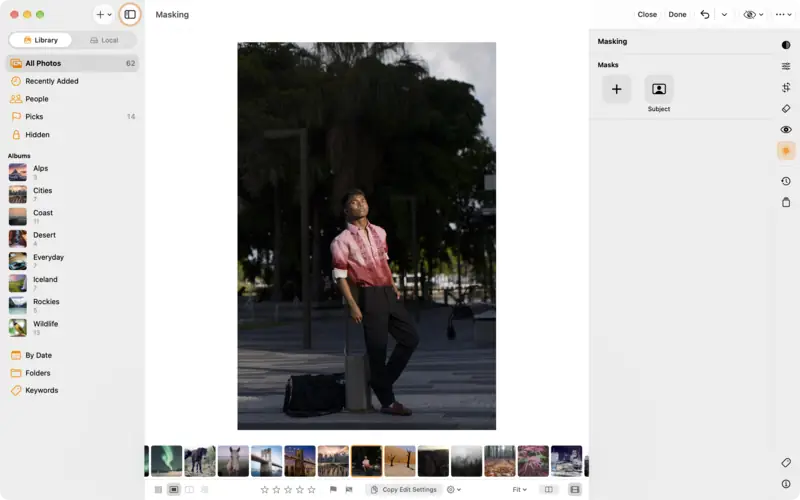
Step 4: Let the background step back Step 5
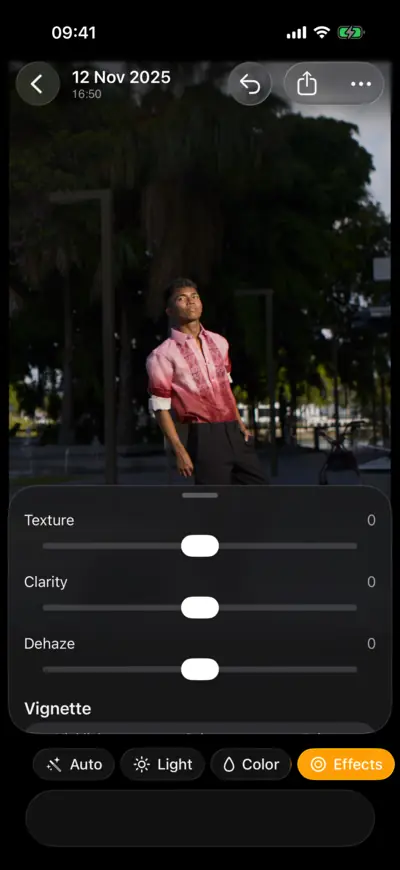
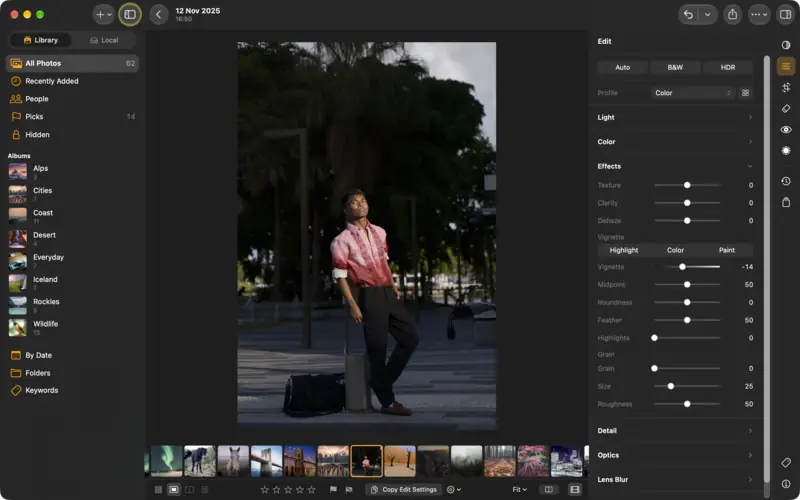
Finish with a soft vignette
Settings
- Effects
- Vignette
- −14
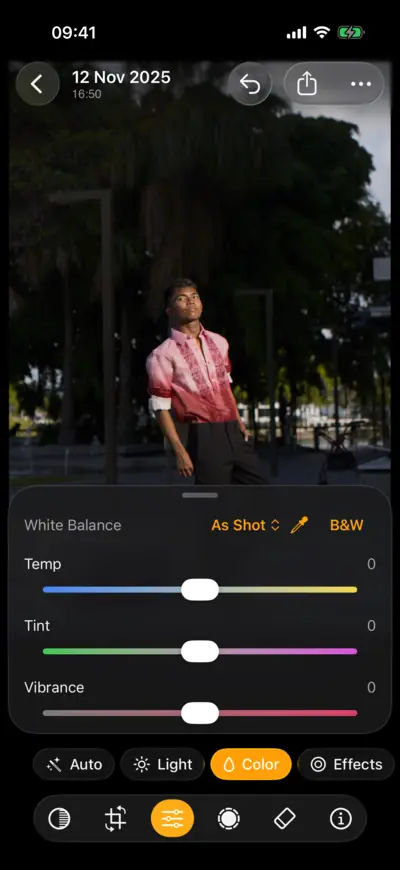
- Color
- Vibrance
- +8
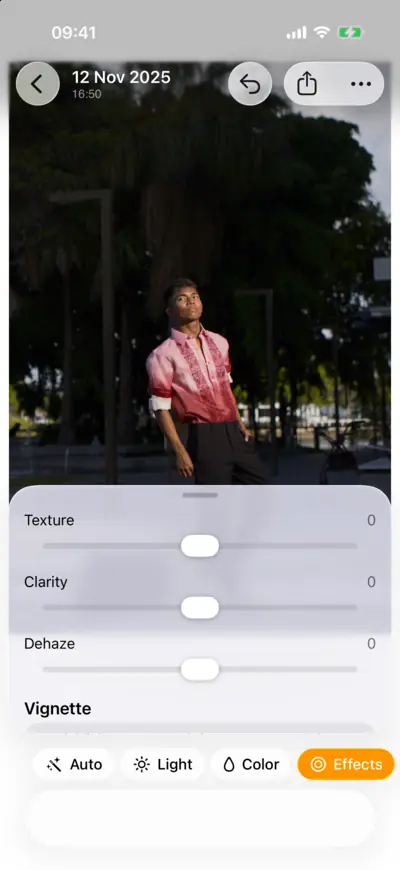
Step 5: Finish with a soft vignette 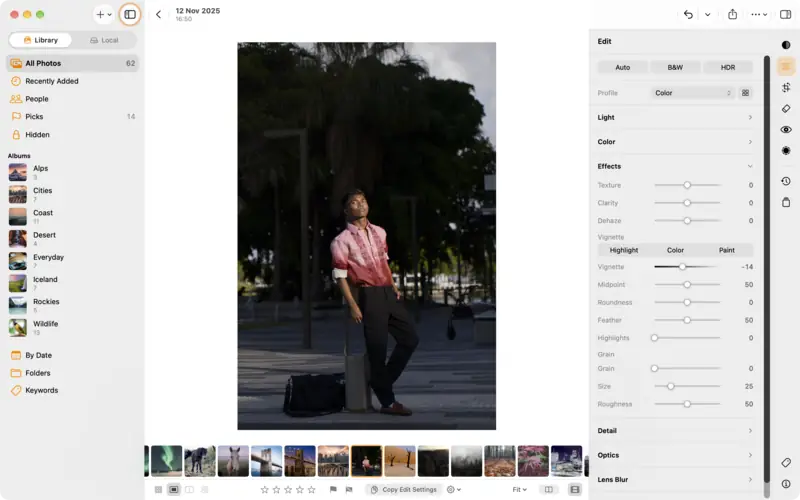
Step 5: Finish with a soft vignette
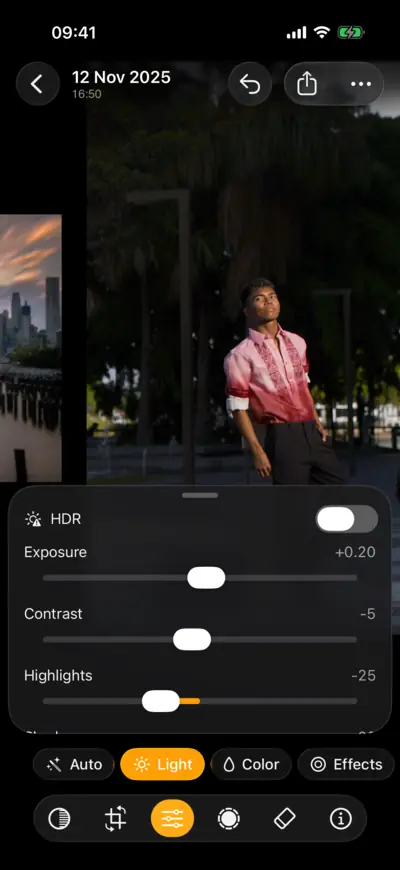
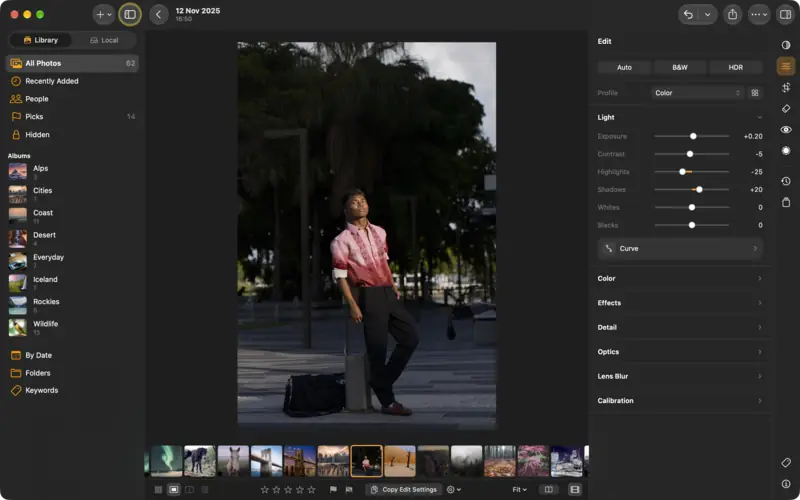
The whole edit
Every setting from the steps above, in order. On another photo, treat them as a starting point: a different light needs different numbers.
- Light
- Exposure
- +0.20
- Highlights
- −25
- Shadows
- +20
- Contrast
- −5
- Color Mixer
- Orange Saturation
- −8
- Orange Luminance
- +8
- Red Saturation
- −5
- Masking
- New mask
- Select Subject
- Mask: Select Subject
- Exposure
- +0.20
- Texture
- −15
- Clarity
- −5
- Masking
- New mask
- Select Background
- Mask: Select Background
- Exposure
- −0.30
- Saturation
- −12
- Clarity
- −15
- Effects
- Vignette
- −14
- Color
- Vibrance
- +8
Follow along with the same photo
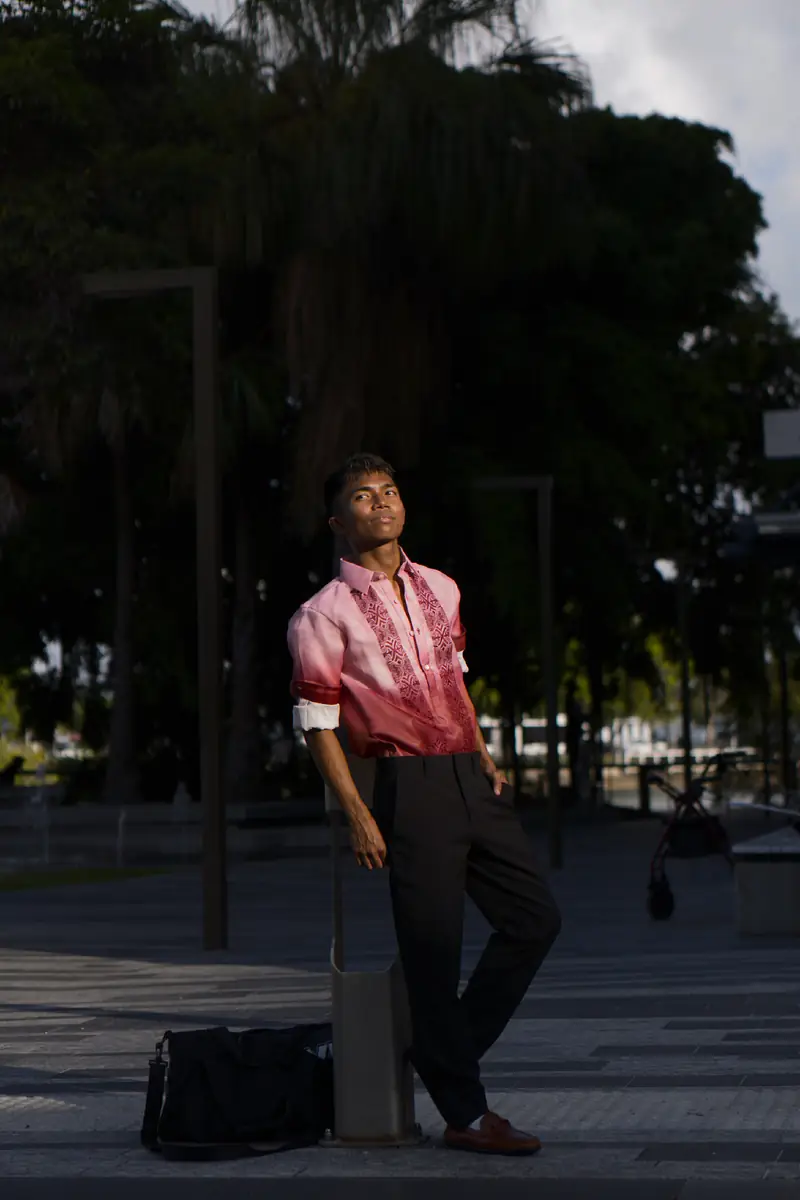
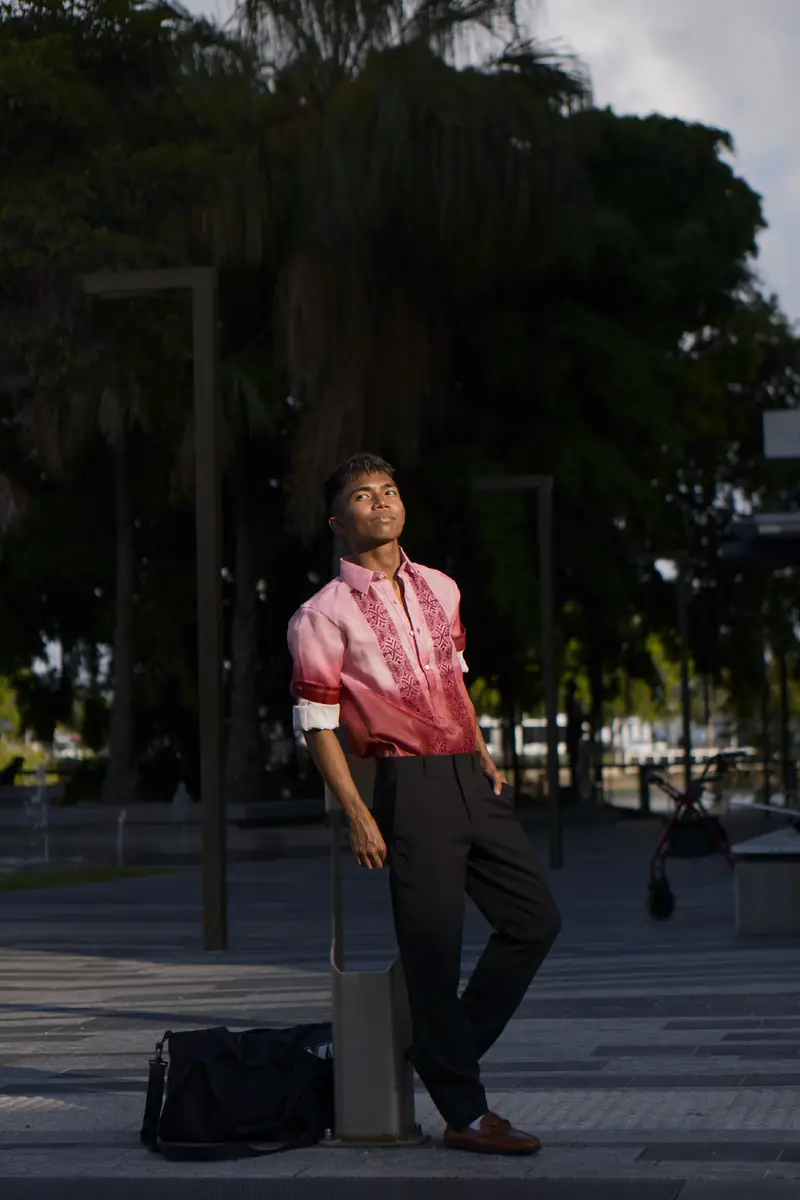
Download the raw file and edit it yourself with the steps above, then compare with the finished edit.
- 24.9 MB
Raw photo
Sony ZV-E10 · ARW
- 5 KB
Preset
“Natural Portrait”, the edit for any photo (without the crop and masks)
- 14 KB
Finished edit
XMP sidecar: every setting, the crop and the masks
Edit it from the start
Compare with the finished edit
Photo: Portrait in golden hour by pu.photograph (discuss.pixls.us) · CC BY-SA 4.0
Questions
Read next
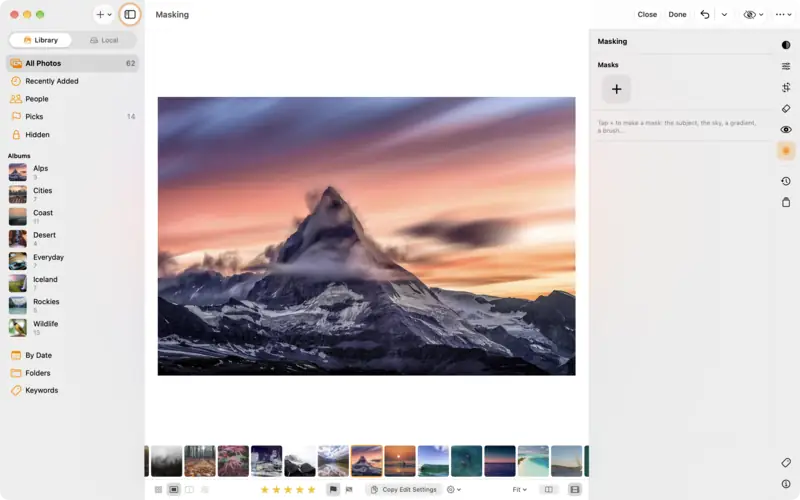
Edit part of a photo with masks
Brighten just the subject, darken just the sky, or fade an edit across the frame with a gradient. Masks in LightBites, step by step.
Intermediate5 min
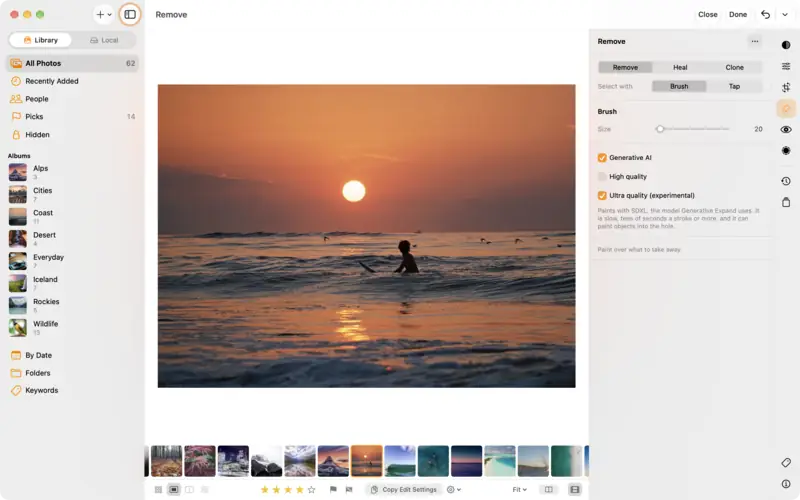
Remove people and objects from a photo
Paint over a distraction and LightBites fills it in. Remove, Heal and Clone, Generative AI for big objects, and dust spots.
Beginner3 min