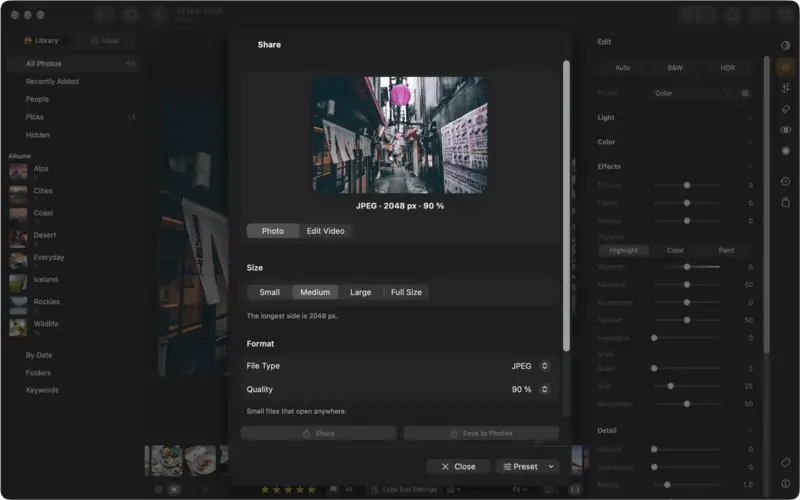
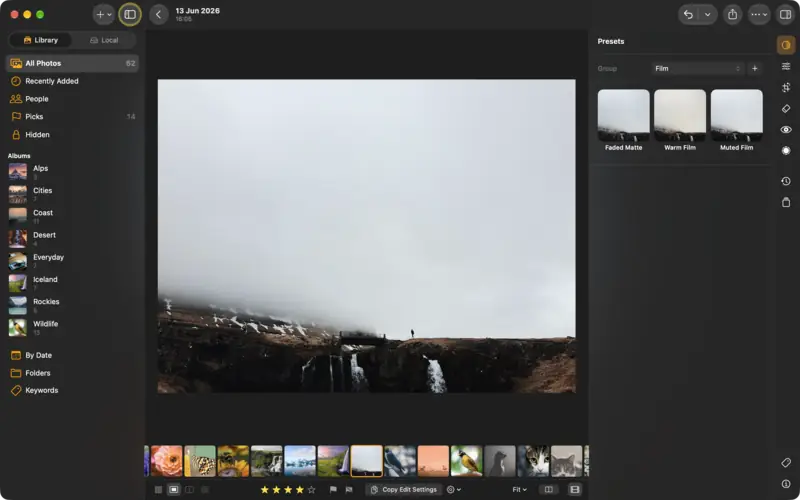
Step 1
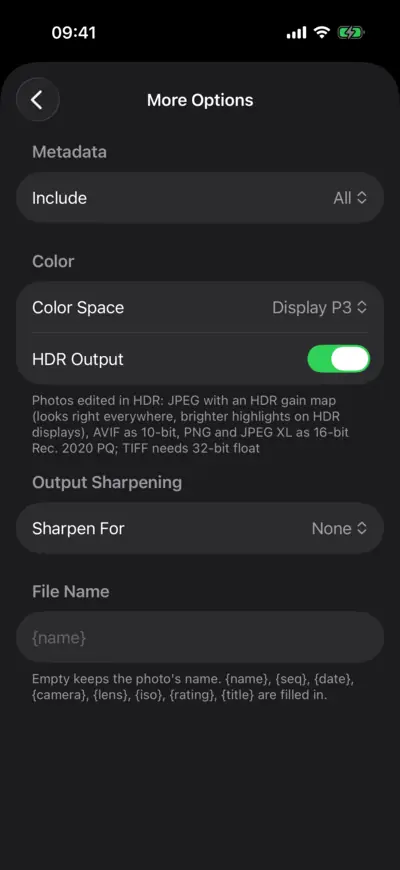
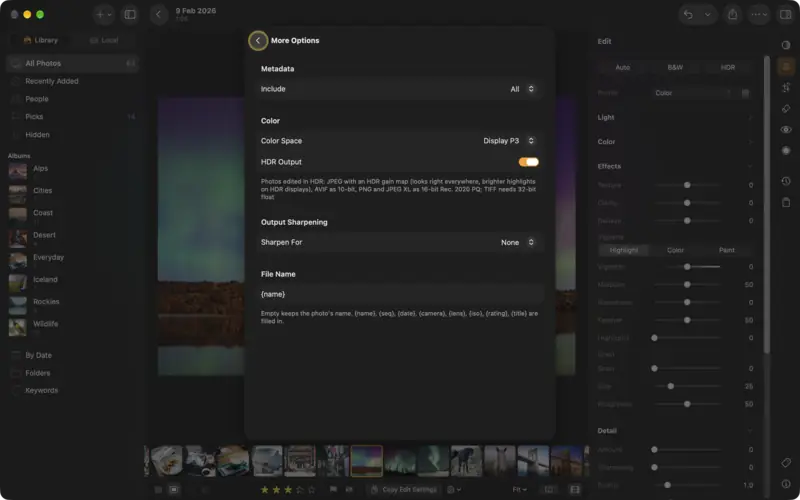
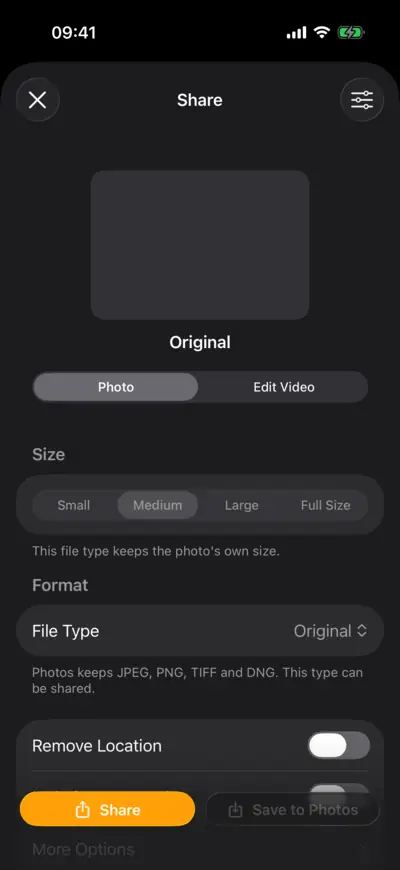
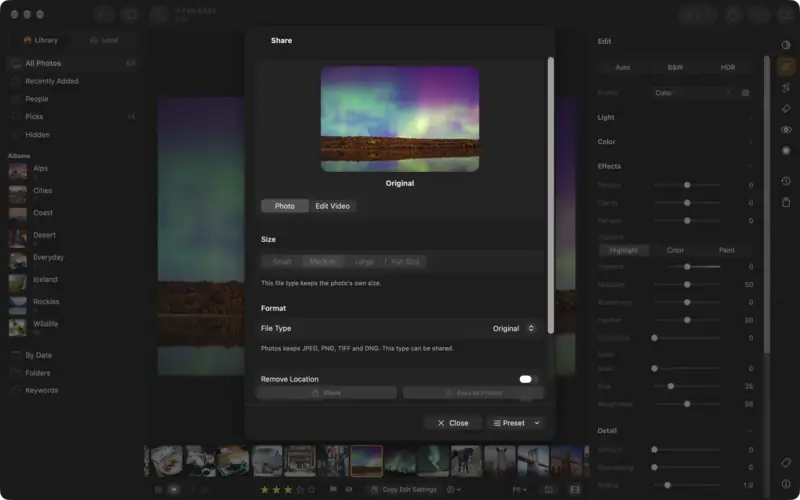
Open the export options
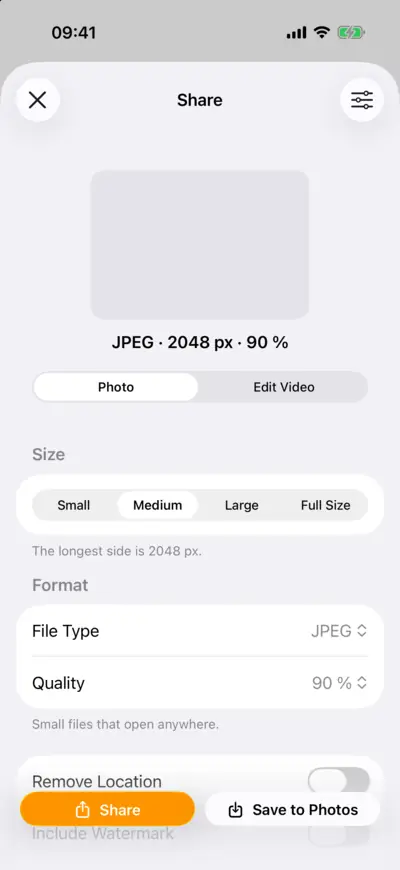
Step 1: Open the export options 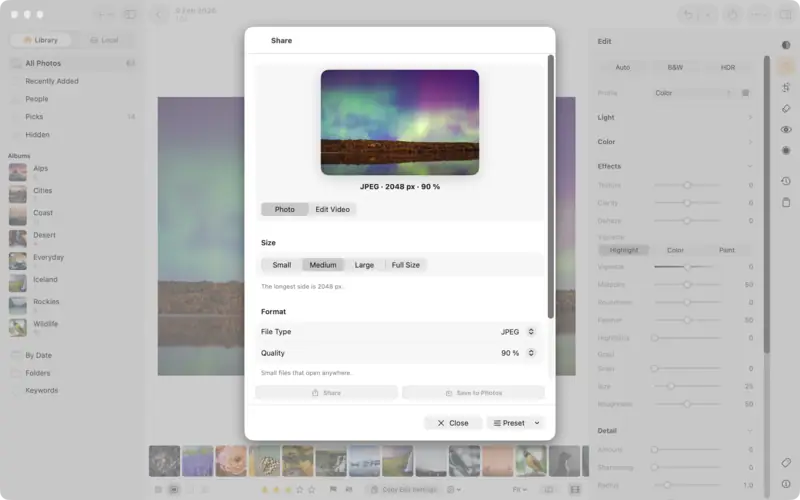
Step 1: Open the export options Step 2
The short answer: which format for what
Step 3
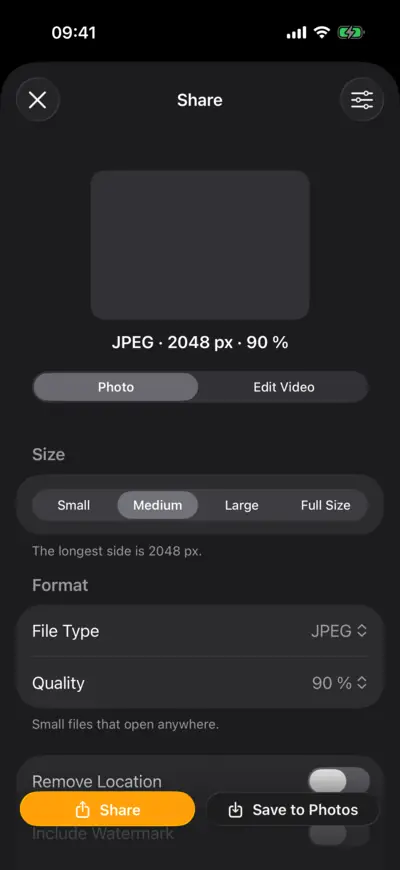
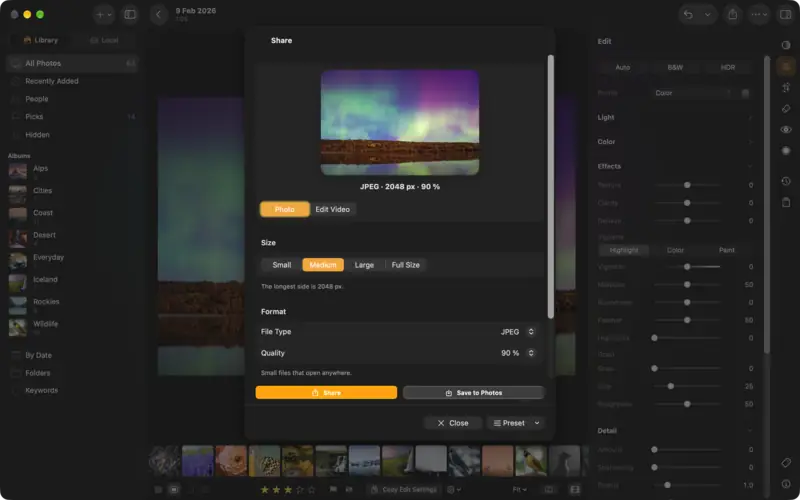
Size and quality
Step 4
JPEG, and JPEG with an HDR gain map
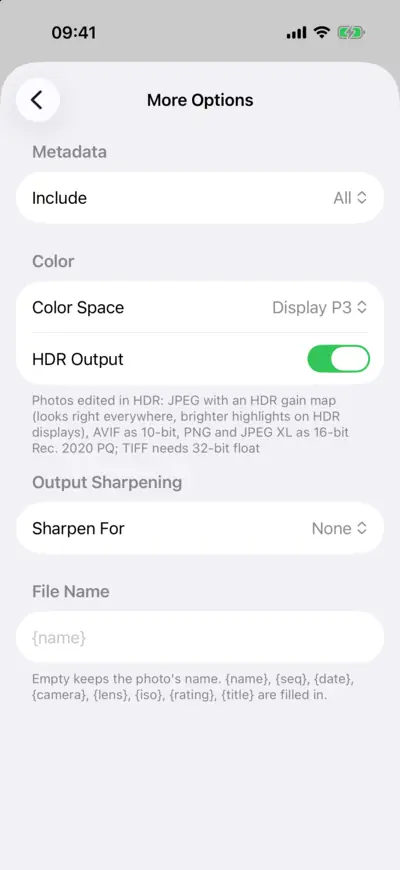
Step 4: JPEG, and JPEG with an HDR gain map 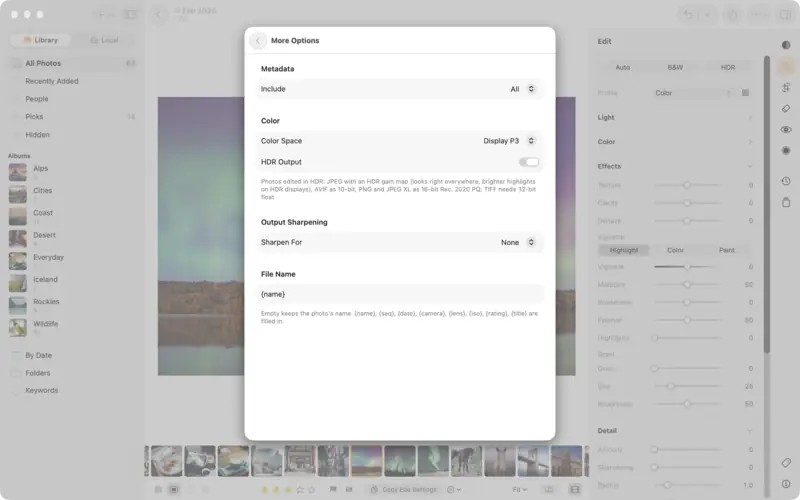
Step 4: JPEG, and JPEG with an HDR gain map Step 5
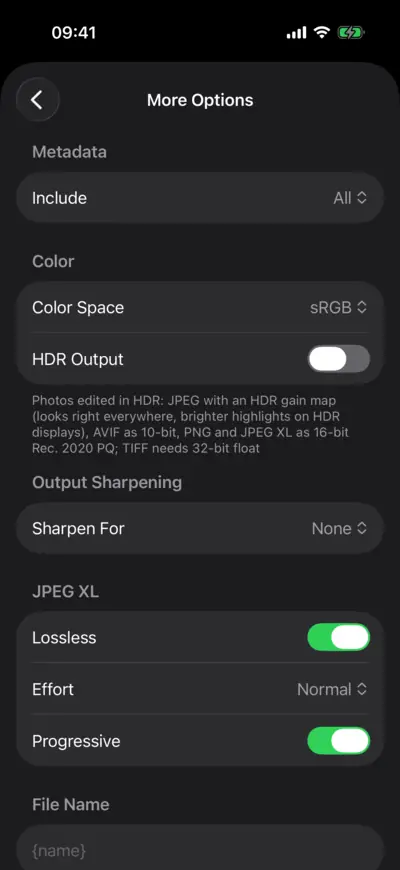
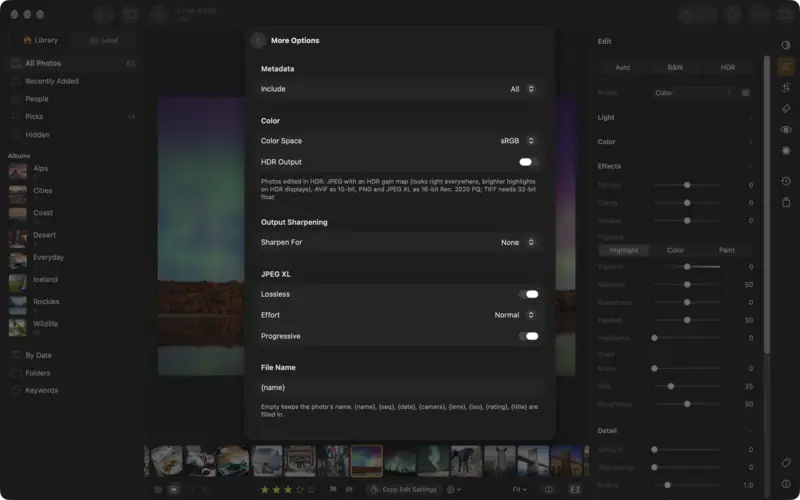
JPEG XL: the modern JPEG
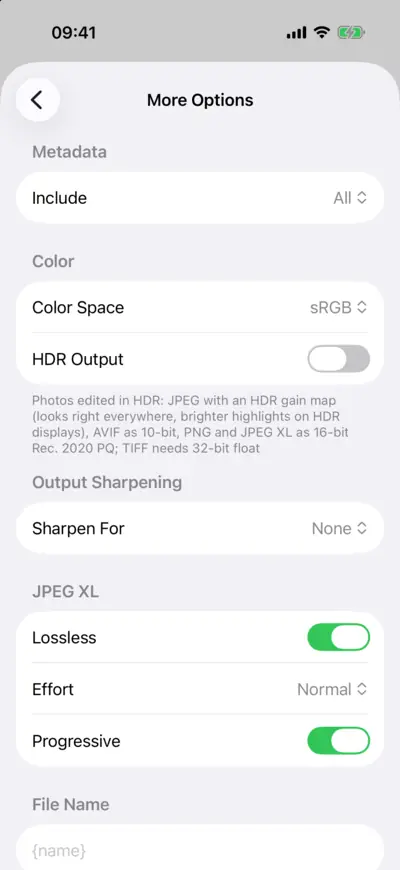
Step 5: JPEG XL: the modern JPEG 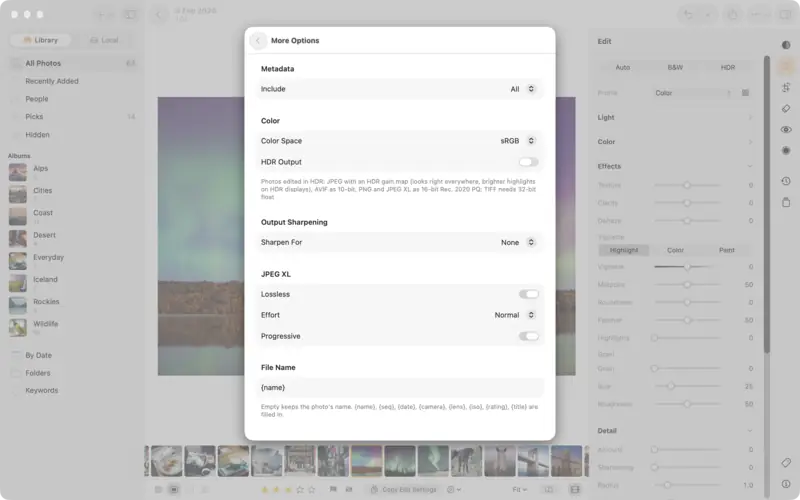
Step 5: JPEG XL: the modern JPEG Step 6
AVIF and WebP for the web
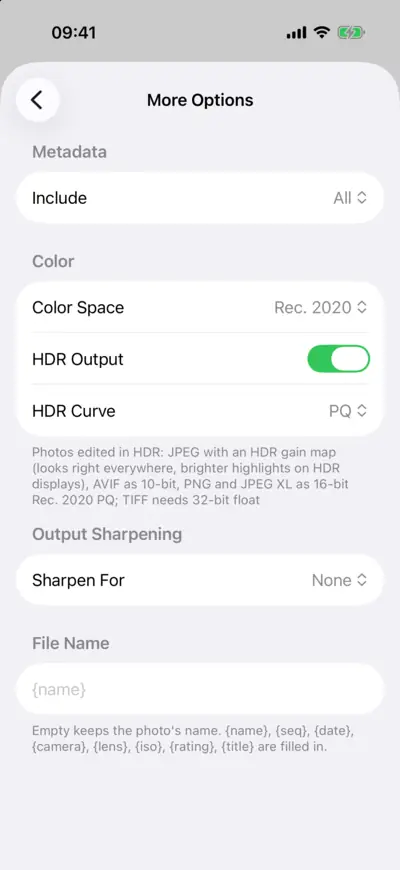
Step 6: AVIF and WebP for the web 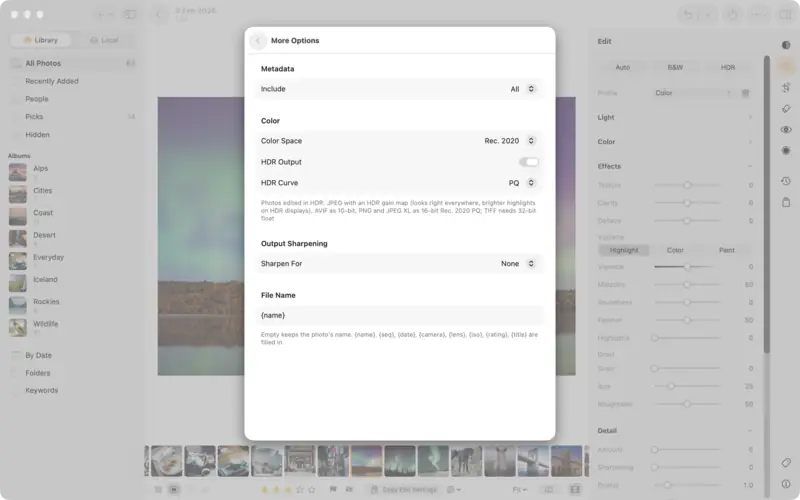
Step 6: AVIF and WebP for the web Step 7
PNG, TIFF and PSD: prints and more editing
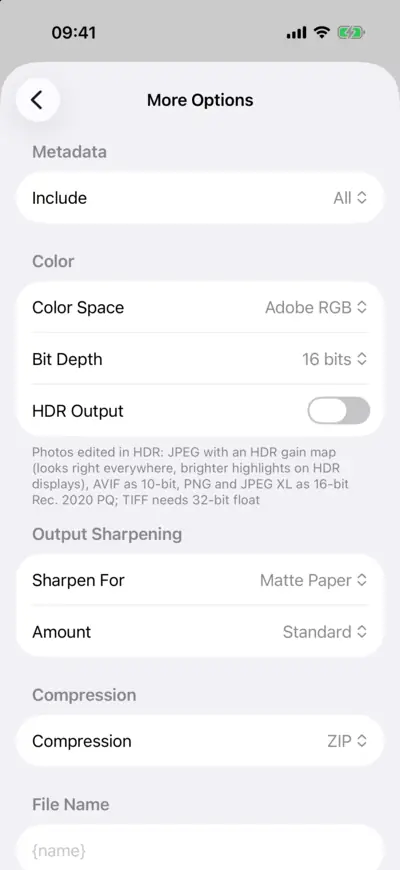
Step 7: PNG, TIFF and PSD: prints and more editing 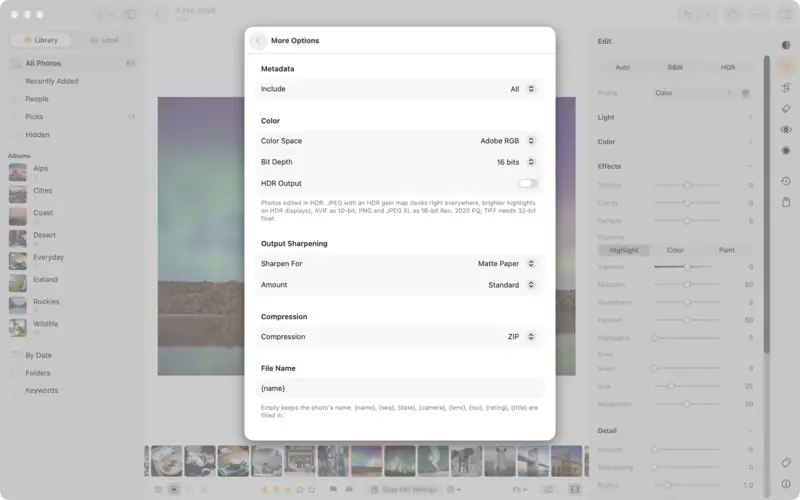
Step 7: PNG, TIFF and PSD: prints and more editing Step 8
DNG and Original: keep the raw
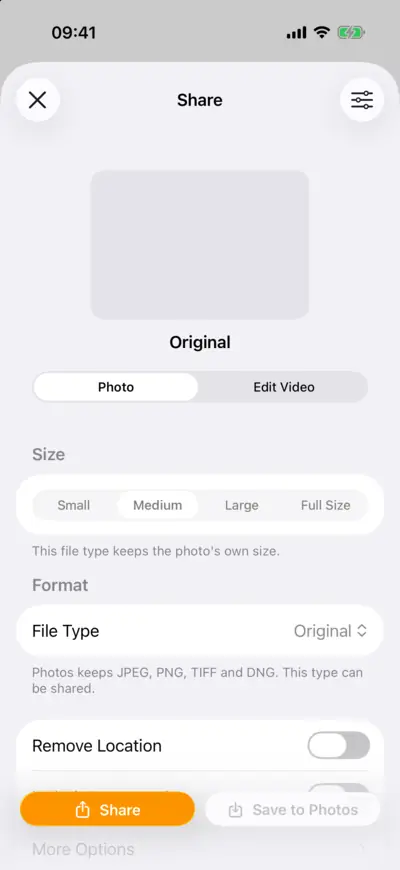
Step 8: DNG and Original: keep the raw 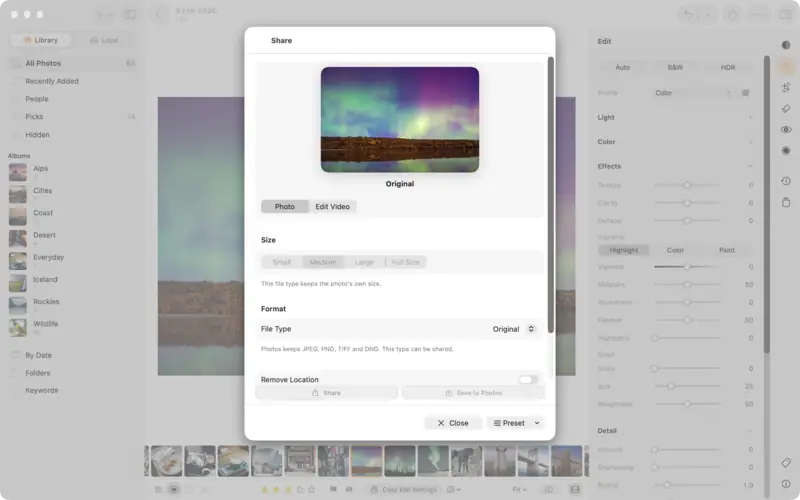
Step 8: DNG and Original: keep the raw Step 9
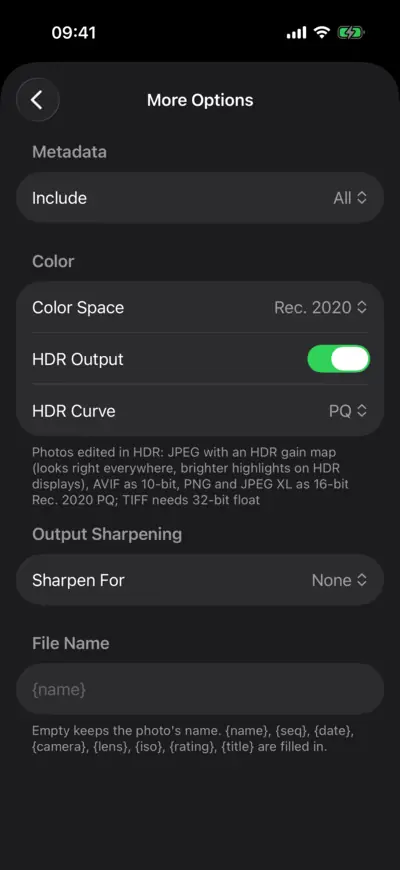
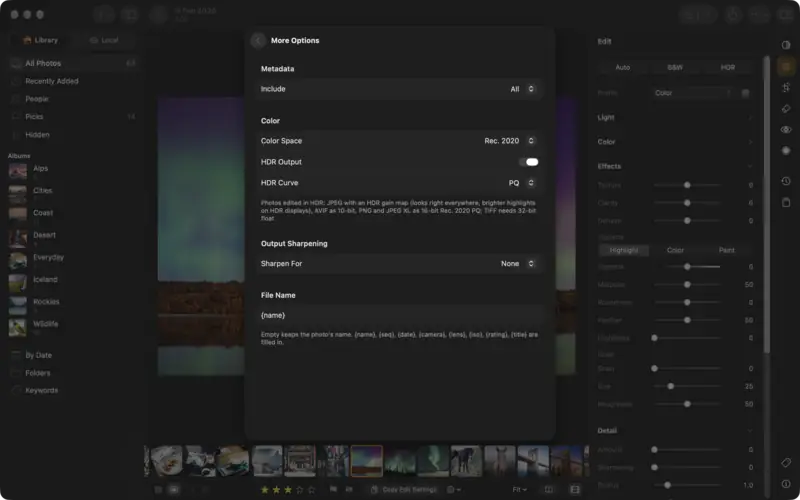
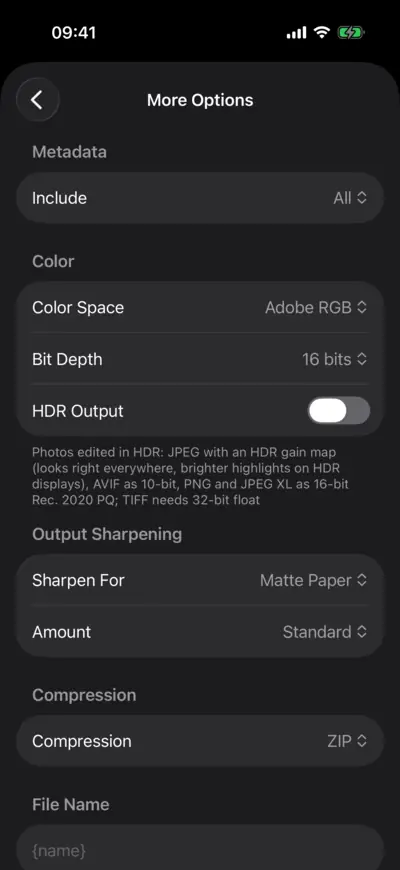
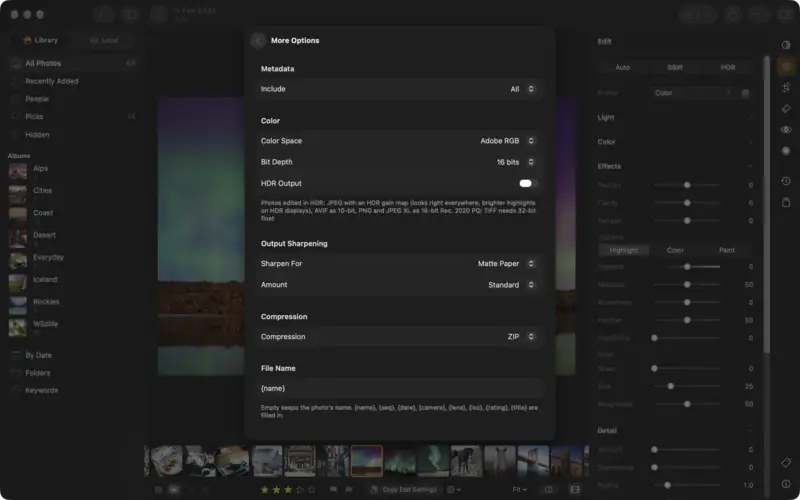
Colour space, sharpening, metadata and file names
Step 10
Real file sizes: one photo, every format
Step 11
Use the same settings again
Questions
JPEG at Medium (2048 px on the long side) and 85 to 90 %. Instagram converts whatever you send, and shows photos at most 1080 px wide.
That is the point of a gain map: a screen that can't show HDR shows the normal photo underneath, so it never looks washed out. On an HDR screen (recent iPhones, iPads and MacBook Pros, many Android phones) it lights up.
For photos, JPEG XL usually keeps fine detail and grain better at high quality, and it can be lossless; AVIF is smaller at lower qualities and is shown by more browsers. For your own archive, JPEG XL; for a website, AVIF or WebP.
No. Export always writes a new file. Your original and your edit stay as they are in your library.
Yes: Original sends the raw as you imported it with an XMP of your edit, and DNG writes it as an open DNG file.
Read next
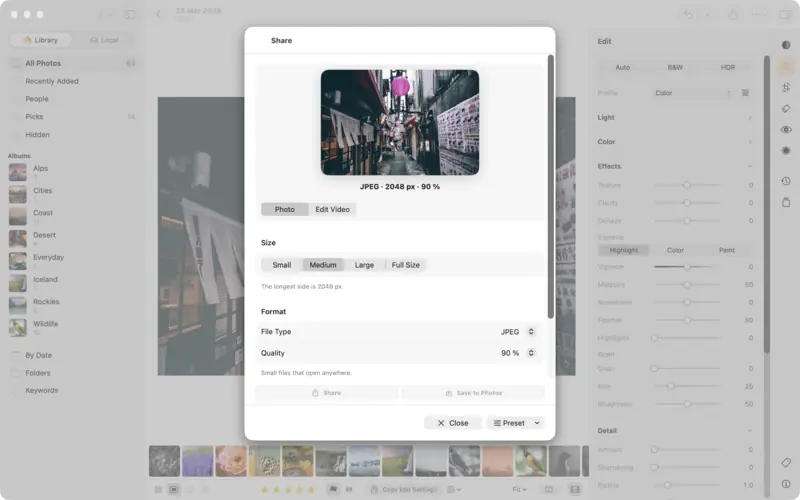
Export and share your photos
Send an edit to Messages, AirDrop or Photos, choose JPEG, PNG, TIFF, AVIF or the original, pick the right size, and keep your location private.
Beginner3 min
How to edit a raw photo, in the order the pros do
A raw file is where a great photo starts. The order to work in, from profile and white balance to tone, colour and sharpening, with a raw file to practise on.
Beginner8 min Raw + settings
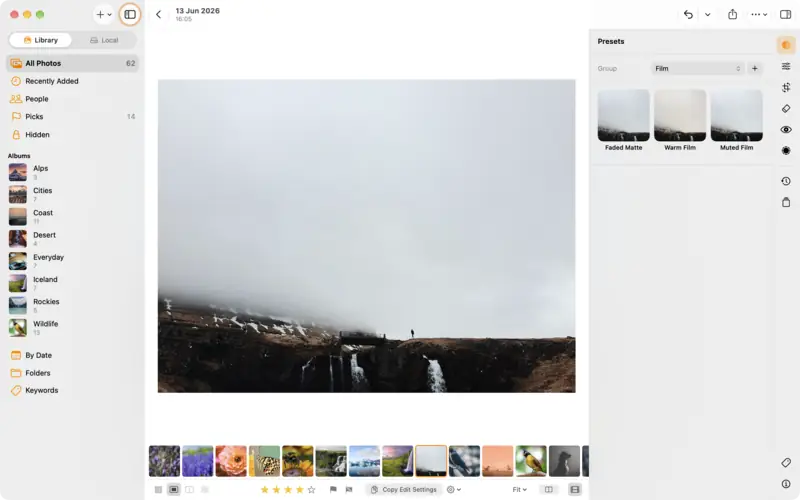
Use, make and import presets
Apply a look in one tap, save your own edit as a preset, import Lightroom and XMP presets, and copy an edit to other photos.
Beginner4 min